Who this is for: teachers
Available to: teachers on all subscriptions. Saved Canvas work on the Lesson Slides tab is on paid subscriptions only.
Before you start: a student account for each student. See Add a student.
When your student logs in to Off2Class, their student page opens. It has a Join Lesson button at the top and three tabs: To Do, Completed Work and Lesson Slides. To see exactly what your student sees, log in as your student. To check your students' submitted work from your own account, use the Teacher Panel or the student's Lesson History. See How can I review my students' Independent Practice (Homework)?
Contents
What your student can open
Your student sees only the lessons and work you give them. Students don't have access to the Lesson Library, so they can't browse or open lessons on their own.
- Join Lesson: active when you open a live lesson with the student enrolled. Otherwise the button reads No Active Lesson.
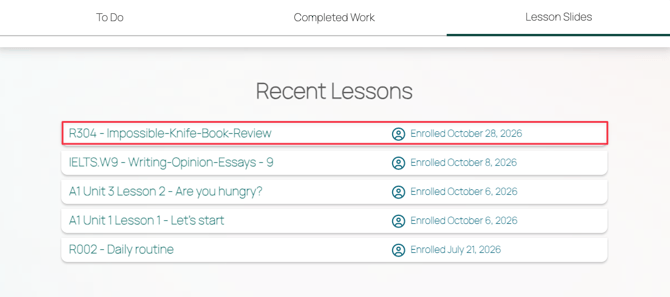
- Lesson Slides: lessons the student has been enrolled in, to go back over after class.
- To Do: Independent Practice (Homework), Unit Checks and Placement Tests you've assigned.
Students log in at app.off2class.com with the email address and password set when their account was added. To give your students a quick way in, link to app.off2class.com from your own website or class page. The link opens the Off2Class login page, and each student logs in with their own details.
The To Do tab
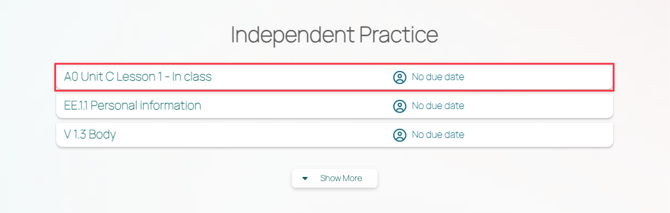
The To Do tab lists work your student hasn't finished yet. Your student selects an item to open it.
- Unit Checks: the Unit Check name and the date you assigned it.
- Independent Practice: the lesson title and the due date, or No due date. The newest assignment is listed first.
- Placement Tests: any Placement Test you've assigned that the student hasn't submitted.
The Completed Work tab
The Completed Work tab lists submitted work, with the date your student completed it.
- Unit Checks: the Unit Check name, score, completion date and review status. Your student selects one to see the results and answer key.
- Independent Practice: the lesson title, completion date and review status. The status reads Not reviewed until you review it.
- Placement Tests: the completion date. Your student can open the results once you've unlocked them.
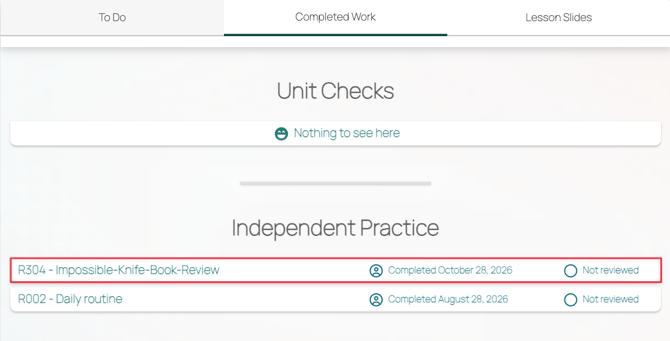
Your student can open submitted Independent Practice from this tab straight away. Before you review it, they see their answers marked correct or incorrect, the correct answers and the points available for each question. View Answer Key at the top opens the full answer key. Your student doesn't see a score or your feedback until you review it.
After you review it, your student also sees:
- Total Score: the overall score as a percentage and in points.
- Question score: the score for each question.
- Feedback: your feedback under each answer, and any general feedback at the end of the assignment.
For the steps your student follows, see How can I help my student find my feedback on their Independent Practice (Homework)?
The Lesson Slides tab
The Lesson Slides tab lists recent lessons your student was enrolled in, with the date. A lesson appears here once you've launched it with the student enrolled.
Your student selects a lesson to open its slides and go back over them, including the Canvas from that lesson.