
Available to all teachers on a free or paid subscription. However, the Canvas features are limited on free subscriptions.
For a brief video overview of my off2class, click here.
Open My Off2Class from the drop-down menu under 'Teacher'.
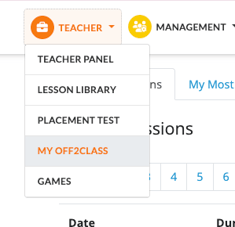
My Off2Class includes the following sections:
- My Past Sessions: All past sessions in reverse chronological order. Used to resume in-progress classes or double-check what you’ve taught recently.
- My Most Used Lessons: Lists your most used lessons ordered according to launch time. Visit here to reuse and adapt your best materials.
- My Favorite Lessons: Create your own list to save your favorite lessons and organize your teaching toolkit.
- My Canvases: All your saved canvases listed in reverse chronological order.
Saving Canvases is a feature available exclusively to teachers on a paid subscription. Teachers with a free subscription can still create and use Canvases during a class, but they won’t be able to save them for future use.
My Past sessions
My Past Sessions helps you quickly return to recent lessons. Everything is listed in reverse chronological order, so your most recent activity is always at the top.
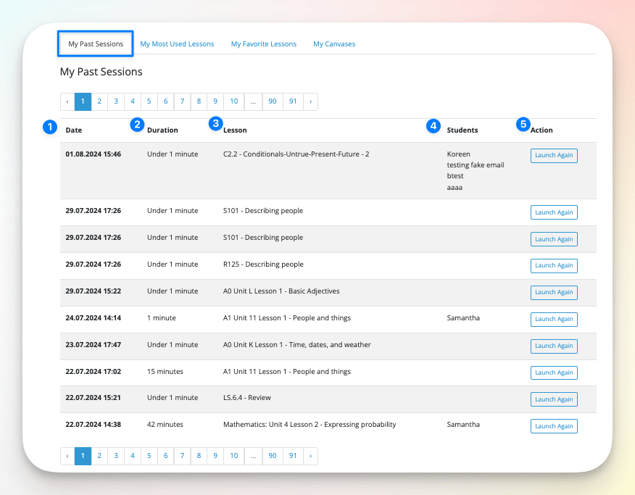
- Date: When the lesson was launched.
- Duration: How long the lesson remained open.
- Lesson: Number and title of lesson.
- Students: Names of enrolled students. If no names are shown, the lesson was viewed without enrollment.
- Action: Click to launch the lesson and automatically enroll the same students directly from this page.
This section is especially helpful for resuming in-progress work or quickly repeating a previous class.
My Most Used Lessons
This section automatically tracks your most frequently launched lessons so you don’t have to search for them again.
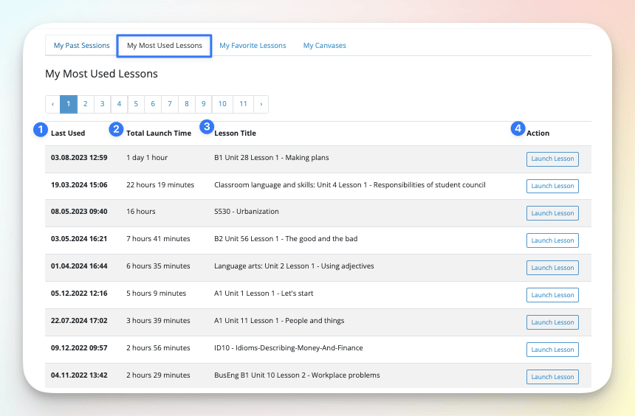
- Last Used: Date the lesson was most recently launched.
- Total Launched Time: How long the lesson has been open across all sessions.
- Lesson Title: Number and title of lesson.
- Action: Click to launch the lesson directly.
Your most used lessons are sorted by total launch time, making it easy to reuse and adapt your most effective materials.
My Favorite Lessons
Create your own curated list of lessons you love and use often.
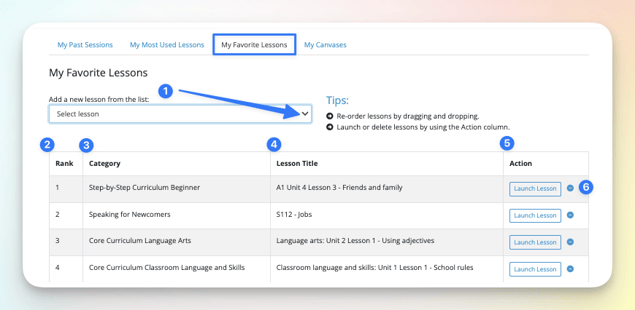
- Add a new lesson from the list: Use the drop-down menu to select your favorite lessons.
- Rank: Drag and drop to reorder your favorites.
- Category: Displays the lesson’s category from the Lesson Library.
- Lesson Title: Number and title of lesson.
- Action: Click to launch lesson directly.
- Delete: Click to remove the lesson from your favorites list
Use this section to keep your go-to content just a click away. My Favorite Lessons is your space to organize and prioritize what you teach best.
My Canvases
The My Canvases section gives you quick access to all saved Canvases from your classes. These are listed in reverse chronological order, based on the most recent update.
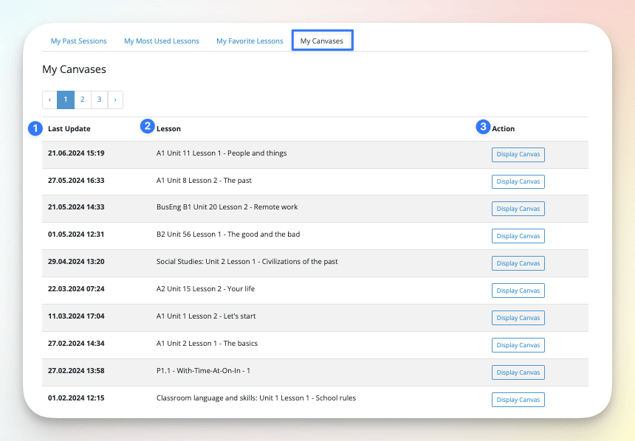
- Last Update: The most recent date the canvas was modified.
- Lesson: Number and title of the associated lesson.
- Action: Click to launch lesson, then open the canvas.
My Canvases turns your saved drawings, notes, screenshots, or videos into a digital blackboard you can revisit across multiple sessions.