
Who this is for: teachers
Available to: teachers on paid subscriptions
Before you start: a class with students.
Contents
- Open Class Management
- Group students by Placement Test
- Launch targeted lessons
- Use the Grades tab (gradebook)
- Review Independent Practice for the whole class
- Manage assignments and scores
Open Class Management
Open Student Management and find the class you want to manage.

From the class card you can:
- See the class name.
- Select Enter Class Management to open the class gradebook (the Grades tab).
- Edit the class name (or a manager can). See How can I edit the name of my class?
- Remove the class (or a manager can).
- Open Class Info to see the number of students, the last lesson, the last session date, and how much Independent Practice (Homework), assessments and Placement Tests the current students have turned in.
- Open Students to see the students in the class.
Group students by Placement Test
Students in the same class often have different strengths across skills and domains. Class Management lets you group students by their Adaptive Placement Test level in a domain, so you can plan targeted instruction.
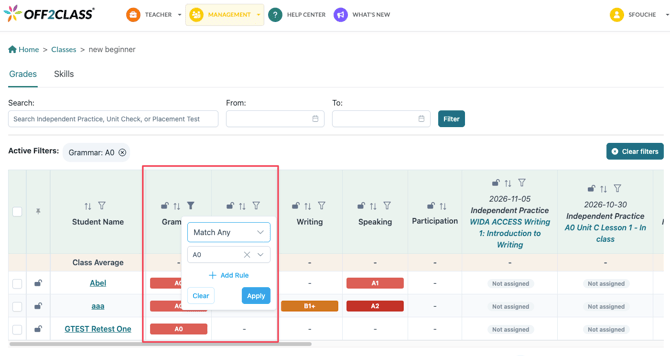
- Select the filter icon in a domain column header.
- Choose a level. To include more than one level, select Add Rule.
- Select Apply.
Result: the table shows only students at that level, and the filter appears under Active Filters above the table. To remove it, select Clear filters.
You can group students by:
- Grammar
- Reading
- Listening
- Writing
- Speaking
For the Standard Placement Test, only Grammar levels are available.
Launch targeted lessons
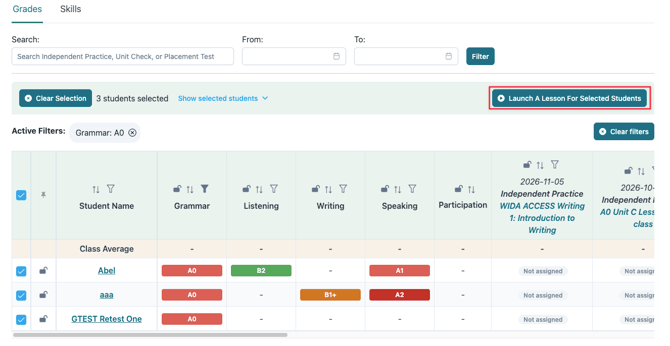
- Group students by level (see above).
- Select the checkbox next to each student in the group.
- Select Launch A Lesson For Selected Students.
Result: the Lesson Library opens. You can start a lesson right away or assign it for later.
This helps with:
- Teaching several levels in the same class
- Running small-group instruction
- Assigning targeted Independent Practice
Use the Grades tab (gradebook)
Search for assignments

Use the search bar to find Independent Practice, Unit Checks and Placement Tests. You can also set a date range with From and To, then select Filter. By default, results include all activity up to today.
What the table shows
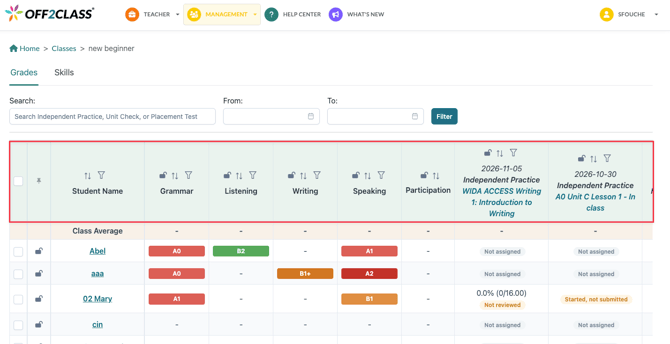
The Grades tab is the class gradebook. It has one row per student and one column per assignment, most recent first:
- The most recent Placement Test results, by domain
- Class participation
- Independent Practice and Unit Checks, with each score as a percentage and in points, for example 75% (6/8.00)
Class Average: the top row averages each column.
Not reviewed: work you haven't reviewed yet is marked Not reviewed. Students see their score after you review it.
 Sort a column with the arrows in its header, for example lowest to highest score.
 The student name column and the header row stay in place:
- The student name column stays visible when you scroll sideways.
- The header row stays visible when you scroll down.
 Filter students to group them by level for targeted lessons.
Assignment actions
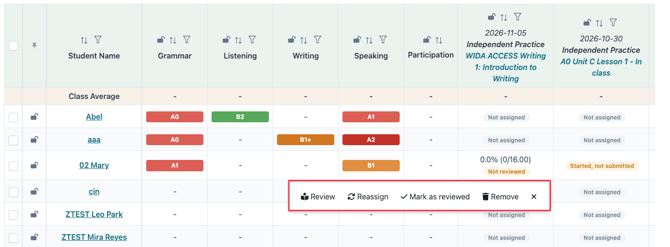
Select an assignment's status in the table to see the actions:
- Participation: add or edit a participation score. See How can I add and manage the participation score for my students?
- Submitted Independent Practice: review, reassign, mark as reviewed or remove.
- Independent Practice not started, or started but not submitted: remove or change the due date.
Review Independent Practice for the whole class
Class Management shows all Independent Practice and Unit Checks for the class in one place, whichever teacher assigned them. This is useful when one person reviews work across several teachers or classes.
Each assignment shows its status:
- Assigned, not started
- Started, not submitted
- Not reviewed
- Reviewed
From a student's status, you can:
- Open the submission
- Review it and leave feedback. See How can I review my students' Independent Practice (Homework)?
- Reassign it
- Mark it as reviewed
Use the search bar and date range to find an assignment quickly.
Watch a short video overview of Class Management.
Manage assignments and scores
Class Management brings student performance and assignment activity together, so you can monitor progress and act across the whole class. You can:
- Track completion across students
- Spot performance trends
- Adjust assignments as needed
- Decide when to reteach or review content
Download scores: managers can download scores as a spreadsheet from the Enterprise Management Panel > Export. Request Student Classes Data gives class averages, participation and proficiency levels. Request Independent Practice History gives each submission. Teachers can't download exports. See How can Managers export account data?