
The features mentioned in this article are only available to Teachers and Managers on paid subscriptions.
If you are on an enterprise/district subscription and your account is rostered via SSO (Clever or Classlink), manual rostering of Teachers, Students, and Classes is disabled. Please contact your coordinator or IT contact for help with rostering. Learn more in this Help Article.
This article is composed of two sections:
Managing classes as a Teacher
Adding a class as a Teacher
- Open the Student Management Panel
- At the top middle of your page, click 'Add Classes'
- Enter a name for your class and click 'OK'
- Your new class will appear below, right next to the 'Students Not Assigned to a Class' section
If you are on a multi-teacher account and you don't see the class in your roster, either add the class or contact your Enterprise Manager.
Adding and removing students from a class as a Teacher
Note: Adding individual students to more than one class at once is only available on our paid multi-teacher subscriptions. You can always move a student from one class to another. If you are on a paid multi-teacher subscription and you'd like to add a student to multiple classes, please contact your Enterprise Manager.
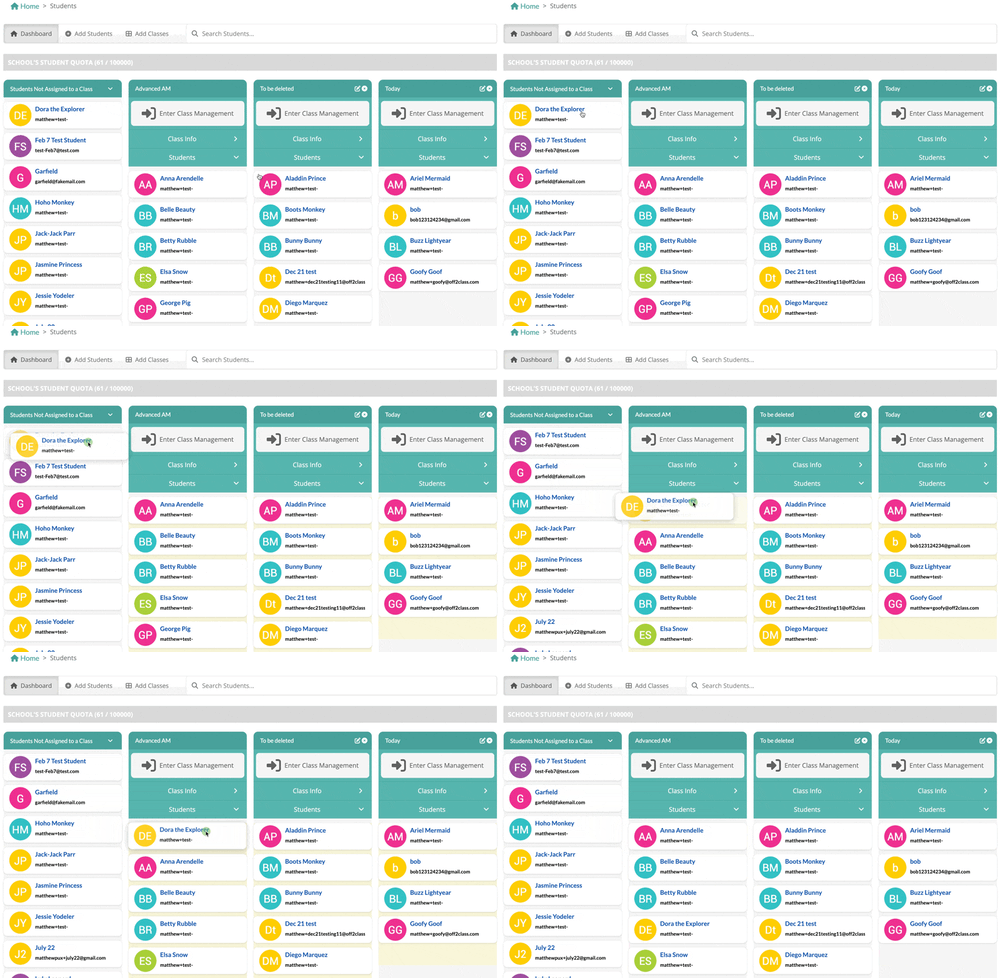
- To add students to the class, start in the Student Management Panel.
- Drag (click and hold) the student in the 'Students Not Assigned to a Class' column to move them over to the yellow-highlighted area of your class and drop them in.
- If you want to remove them from the class, follow the same steps but drop them into the 'Students Not Assigned to a Class' section.
Note: Students are organized numerically and/or alphabetically in Student and Class Management. Edit student names or add a number if you need students to appear in a specific order.
Changing the class name as a Teacher
- Open the Student Management Panel
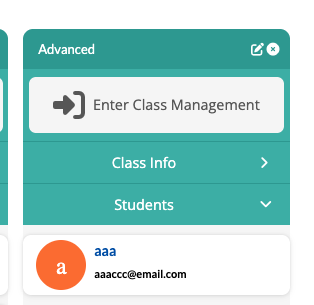
- At the top of the class, click on the white pencil icon (if there is no pencil, contact your Enterprise Manager to ask for help)
- Enter the new class name, and click 'OK'
Deleting a class as a teacher
- Open the Student Management Panel
- Next to the class name, locate the X (if there is no X, contact your Enterprise Manager to ask for help)
- Click on the white X button and click 'OK'
- Any student in the class will be moved to the Students Not Assigned to a Class section.
Note: When a class is deleted, all associated records are permanently removed and cannot be recovered. The students themselves are not deleted; they are only removed from the class.
Managing classes as a Manager
Managing a class as a Manager is only available to paid multi-teacher subscriptions.
Adding a class as a Manager
As a manager on a paid multi-teacher account, you can automatically create multiple classes when importing teachers.
- Open the Enterprise Management Panel
- Click the Classes card
- At the top left of your screen, click 'Add Class'
- By default, classes are editable by the teacher assigned to them, meaning they can change the name of or delete the class. If you don't want any future teacher to edit or delete the class, uncheck the 'Is Editable' checkbox.
- Name the class and click the blue 'Submit' button
- Your new class will appear below
Viewing classes
- Open the Enterprise Management Panel
- Click the Classes card
-
The class section gives you visibility into all of the classes on your account. You can see:
- The name of the class.
- The teachers assigned to the class.
- The number of students in the class.
- Multi-select classes to perform bulk actions
- Search the name of the class.
If you have more than 10 classes, you can show more classes on each page by changing the value next to the Per Page toggle near the top right of your screen to 25 or 50.
If your classes span across multiple pages, you can switch between them using the left to right menu bar near the bottom right of your screen.
Adding and removing students from a class as a Manager
- Open the Enterprise Management Panel
- Click the Students card
- Select one or multiple students by clicking the box to the left of their name or by selecting multiple students by email
- At the bottom of the page, in the Bulk Actions menu, click 'Select action'
- Select 'Add Class'
- If you want to remove them from the class, follow the same steps and use the 'Remove Class' bulk action instead.
- Select the class you want to add them to and click the blue 'Apply' button
Changing the class name as a Manager
- Open the Enterprise Management Panel
- Click the Classes card
- Click on the class you want to rename
- At the top of the next screen, update the name of the class and click the blue 'Submit' button once done.
Managing class teachers
- Open the Enterprise Management Panel
- Click the Classes card
- Use the check boxes to select the class/es
- Scroll down to bulk actions and select either add, change or remove teacher
- Click Submit
- Make changes on the next screen
- Click Apply.
Deleting a class as a Manager
- Open the Enterprise Management Panel
- Click the classes card
- Select one or multiple classes by clicking the box to the left of the class name
- At the bottom of the page, in the Bulk Actions menu, click 'Select action'
- Select 'Delete class' and click the gray 'Submit' button below
- Click 'Delete'
Note: When a class is deleted, all associated records are permanently removed and cannot be recovered. The students themselves are not deleted; they are only removed from the class.
Related articles: