
Who this is for: teachers and managers
Available to: teachers on all subscriptions. Managers and owners on multi-teacher subscriptions.
Before you start: each student added to your account, with their own Off2Class login. See how to add a student. To assign Independent Practice when you close the Classroom, you also need a lesson you've launched with the student enrolled. See how to launch a lesson and enroll students.
Contents
- Assign Independent Practice as a teacher
- Assign a course as a manager
- Manage courses as a manager
- Things to know
Assign Independent Practice as a teacher
Independent Practice lets your students practice a lesson on their own after class, and shows you how much of it landed. They find it on their To Do tab whenever they log in. Many Independent Practice assignments accept audio recordings, so students can practice speaking outside class.
You can assign any lesson's Independent Practice on its own, and students don't need to take a Placement Test first. Independent Practice only goes to students on your account. There isn't a share link or quiz link for students without an Off2Class login.
Assign Independent Practice when you close the Classroom
Closing the Classroom is where you send the Independent Practice for the lesson you just taught. It arrives pre-selected for every student enrolled in the lesson at the moment you close it, including anyone you enrolled part-way through.
Important: always finish with Close classroom in the Actions Bar. Closing the browser tab or using the back button leaves the lesson open and skips the Independent Practice prompt. If you set a due date, students lose access to the Independent Practice once it passes.
- At the end of the lesson, in the Actions Bar, select Close classroom. The Assign Independent Practice screen opens.
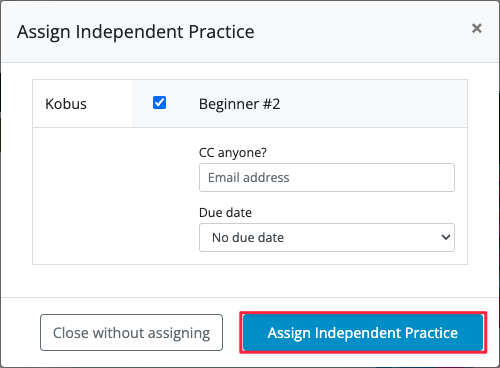
- Every enrolled student is selected by default. To leave a student out, clear the checkbox beside their name. Deselect all clears them all at once.
- Optional: in Due date, select a date. Leave it on No due date if students should keep access to the Independent Practice.
- Optional: in CC anyone?, enter the email address of a parent or co-teacher to copy them in on the assignment.
- Select Assign Independent Practice. Nothing sends until you do. To close the lesson without sending anything, select Close without assigning.
Result: the Independent Practice appears on each selected student's To Do tab.
On the last lesson in a unit, the screen is titled Assign Independent Practice and Unit Check and adds a second column for the Unit Check. You can assign one, both or neither, and the button reads Assign Selected Items. See how to assign a Unit Check.
Assign Independent Practice from a student's profile
Use this when you taught the lesson but skipped the Independent Practice at the time.
- Go to the Student Management Panel.
- Select your student's name.
- Find the lesson you want to assign the Independent Practice for.
- In the actions column, select the blue plus (+) icon.
- Select Assign Independent Practice.
Result: the Independent Practice appears on the student's To Do tab.
Assign Independent Practice again for extra practice
Reassign a lesson's Independent Practice when a student needs another go at the same material.
From the Teacher Panel (submitted, not yet reviewed):
- Go to the Teacher Panel and open the Independent Practice tab.
- Select the box next to the Independent Practice.
- Select Reassign, then OK.
From Class Management (reviewed or not):
- Go to the Student Management Panel and select Enter Class Management on the class.
- In the student's row, select the Independent Practice's status.
- Select Reassign.
If the student isn't in a class and the Independent Practice has been reviewed, launch the lesson again, enroll the student, select Close classroom, then select Assign Independent Practice.
Result: the student gets a second attempt at the same Independent Practice, and both attempts are kept.
To see every attempt a student has made:
- Go to the Student Management Panel.
- Select the student's name.
- Select the green clock icon to list the attempts.
- Select the blue eye icon to open one attempt.
Result: you see each attempt separately, with the answers the student gave.
Assign a course as a manager
A course is a set of lessons and their Independent Practice packaged together. Assign one and the students get every lesson in it, plus the Independent Practice that goes with each.
Courses don't include Unit Checks. Assign Unit Checks separately. See how to assign a Unit Check.
- Select Management to open the Enterprise Management Panel.
- If you also have the teacher role, open the Management menu and select Enterprise.
- Select the Students card or the Classes card.
- Select the box beside each student or class that should receive the course.
- In Bulk Actions, select Assign courses.
- Select Submit.
- On the next screen, select a teacher.
- Select a course.
- Select Apply.
Result: every student you selected can open the course lessons and their Independent Practice.
Manage courses as a manager
Start each of these from the Enterprise Management Panel with the Courses card open.
Create a course
- Select Create my own course.
- Add the lessons you want to include.
- Enter a name for the course.
- Enter a description.
- Select Save & close.
Result: the course appears in your course list, ready to assign.
Edit a course
- For the course you want to change, select View & customize.
- Make your changes. You can rename the course, edit the description, add or remove lessons and reorder them.
- Select Save & close.
Result: your course list shows the changes.
Duplicate a course
- For the course you want to copy, select Duplicate.
- Change the name, description or lessons.
- Select Save & close.
Result: the copy appears in your course list alongside the original.
Delete a course
You can delete courses you created or customized. Off2Class courses can't be deleted.
- For the course you want to remove, select the trash icon.
- Select Delete to confirm.
Result: the course no longer appears in your course list. Students already assigned to it keep its lessons and Independent Practice.
Things to know
Important: the answer key only becomes available to you once the student starts the Independent Practice. Before then, you can preview the questions from the Lesson Library. This is the teacher's answer key, not something the student is given.
Tip: to run a flipped classroom, enroll your students in the lesson and select Close classroom before you teach it. That gives them the slides to preview. Assign the Independent Practice at the same time, or wait until class begins.