
Who this is for: teachers
Available to: teachers on paid subscriptions
Before you start: a student on your roster. To assign to the whole class, enroll your students in the last lesson of the unit.
Unit Checks are end-of-unit tests of 20, 30 or 50 questions. Each one assesses a student's understanding of the key vocabulary and grammar covered in that unit. They're scored automatically, and the results show where students need more practice. To see which lessons have Unit Checks, see Unit Checks.
It's best to teach each lesson in the unit and assign its Independent Practice (Homework) before you assign the Unit Check. If anything is missing, Off2Class shows a warning when you assign, but you can still go ahead.
You can assign a Unit Check in two ways: to the whole class at once, when you close the classroom at the end of the unit's last lesson, or to one student at a time from their profile.
Contents
- Assign a Unit Check to the whole class at the end of a unit
- Assign a Unit Check to one student from their profile
- Reassign or remove a Unit Check
Assign a Unit Check to the whole class at the end of a unit
- Launch the last lesson in the unit with your students enrolled.
- When you finish teaching, select the purple Close Classroom button below the lesson.
- In the Assign Independent Practice and Unit Check window, both Independent Practice and the Unit Check are selected for each student by default. Clear a checkbox to leave either one out for a student.
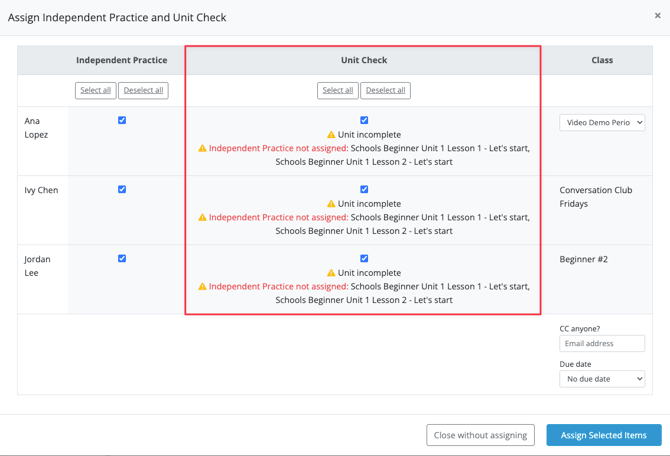
- Select Assign Selected Items.
Result: the Unit Check, and the lesson's Independent Practice if selected, are assigned to every selected student at once and appear on their To Do tab.
If a student hasn't been assigned Independent Practice for every lesson in the unit, the window shows Unit incomplete and lists the missing lessons.
Assign a Unit Check to one student from their profile
Use this to assign a Unit Check to one student at a time, for example a student who missed the unit's last lesson.
- Go to Student Management and select the student's name.
- Below the student's notes, select the Unit Checks tab.
- Use the Filters bar to select a proficiency level and find the Unit Check.
- In the Actions column on the far right, select the blue plus icon (Assign Unit Check).
- In the Assign Unit Check window, choose the class under Select a class, then select Assign Unit Check.
Result: the Unit Check appears on the student's To Do tab, and the plus icon changes to a gear icon.
The Unit Checks tab lists each Unit Check with its proficiency level, the student's progress through the unit, whether it has been assigned, and the score. Scores are generated automatically and are available to you and the student as soon as the Unit Check is submitted. In the Actions column, the gray list icon previews the questions, and after the student submits, a star icon opens their answers.
Reassign or remove a Unit Check
Once a student has submitted a Unit Check, you can reassign it so they can retake it.
- Go to Student Management and select the student's name.
- Select the Unit Checks tab and find the Unit Check.
- In the Actions column, select the gear icon.
- In the Manage Unit Check Assignment window, select Reassign Assignment.
Result: the Unit Check appears on the student's To Do tab again. The score clears, and an Assessment Assignment History icon appears in the Actions column.
Before the student submits, the same window offers only Preview Unit Check and Remove Assignment. Remove Assignment unassigns the Unit Check.