
Available to Teachers on paid subscriptions.
Table of contents
- Access Class Management
- Group students by Placement Test
- Launch targeted lessons
- Understand the Class Table
- Review homework for the whole class
- Manage assignments and scores
Access Class Management
Open Student Management and locate the class you want to manage.
From here you can:
- View the class name
- Click to enter Class Management
- Edit the class name (or have a Manager update it)
- Remove the class (or have a Manager remove it)
- View a drop-down menu with brief class information:
- Number of current students in the class
- Information about the last lesson taught
- The date of the last lesson taught
- The total number of homework/unit checks/placement tests submitted by the current students of the class
- View a list of the students in the class
Group students by placement test
Students in the same class often have different strengths across skills and domains.
Class Management allows teachers to group students by their Adaptive Placement Test level within a domain, making it easier to deliver targeted instruction.
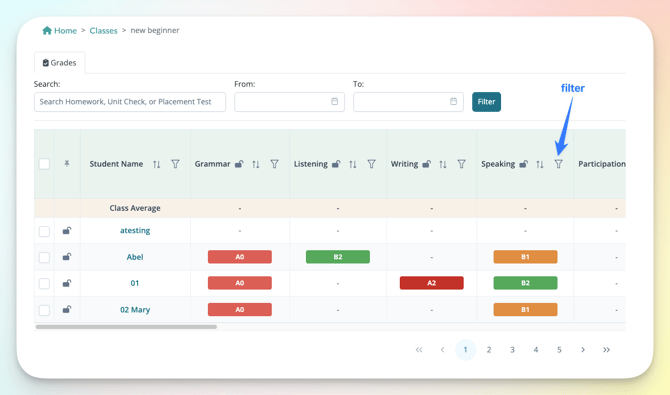
The filter row at the top of the table can be used to group students by:
- Grammar
- Reading
- Listening
- Writing
- Speaking (coming soon)
For the Standard Placement Test, only Grammar levels are available.
Grouping by placement level allows teachers to view students with similar proficiency within the same class and domain.
Launch targeted lessons
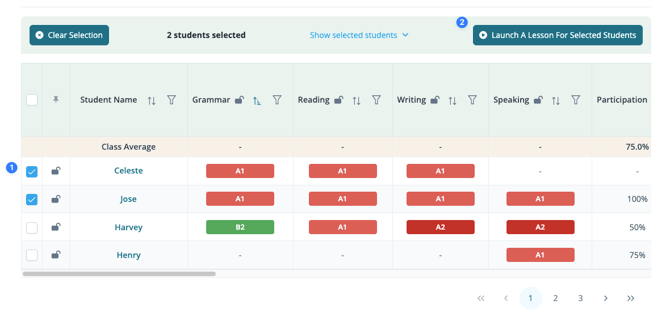
After grouping students, teachers can select a group (1) and launch a lesson directly from Class Management (2).
The Lesson Library opens automatically, allowing a lesson to be:
- Started immediately
- Assigned for later
This supports:
- Teaching multiple levels within the same class.
- Running small group instruction.
- Assigning targeted homework.
Understand the class table
Search for assignments
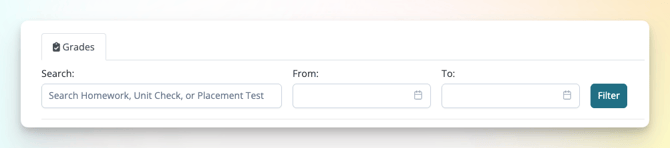
The search bar can be used to find:
- Homework titles
- Unit checks
- Placement tests
A date range can also be applied. By default, results include all activity up to today.
What the table shows
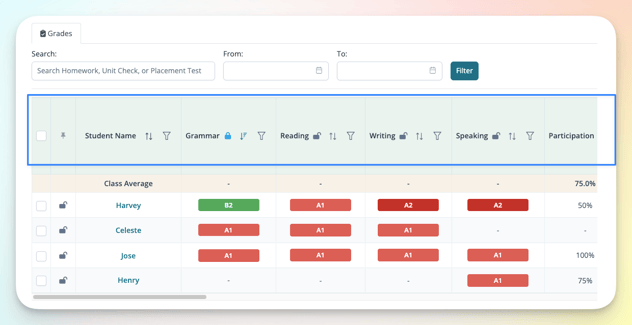
The table displays class activity in reverse chronological order (most recent first), including:
- Most recent placement test resuts (by domain)
- Class Participation
- Homework and Unit checks
- Scores and class averages
 Columns can be sorted using the arrows in the header (for example, lowest to highest scores).
 Row and column locking in the table improves usability when managing larger classes.
- A locked student name column - remains visible when scrolling horizontally
- A locked header row - remains visible when scrolling vertically
 Filter students to group by level for targeted lessons.
Assignment actions
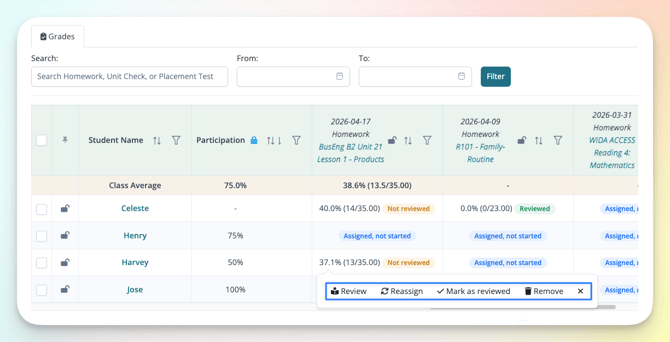
Selecting an assignment reveals available actions:
- Class Participation (above) can be added or edited.
- Completed homework can be reviewed, reassigned, marked as reviewed, or removed.
- Homework not started or started not submitted can be removed or have the due date changed.
Review homework for the whole class
Class Management provides a centralized view of all homework and unit checks for the class, regardless of which teacher assigned them.
This is useful when one person is reviewing work across multiple teachers or classes.
Each assignment includes a status:
- Assigned, not started
- Started, not submitted
- Not reviewed/Reviewed
From the homework row, teachers can:
- Open submissions
- Review and leave feedback
- Reassign
- Mark as reviewed
Use the search bar (and optional date range) to quickly find the homework assignment.
For a brief video overview of class management, click here.
Manage assignments and scores
Class Management brings together student performance and assignment activity in one place, making it easier to monitor progress and take action across the entire class.
Teachers can:
- Track completion across students
- Identify performance trends
- Adjust assignments as needed
- Decide when to reteach or review content
Related articles: