
Who this is for: teachers
Available to: teachers on all subscriptions. Saved Canvas content is only available on paid subscriptions.
Before you start: Nothing.
Let students write or draw on the slides
Writing and drawing on the slides are off until you turn them on. Select Write on the slides or Draw on the slides above the slides to open that tool's bar under the toolbar. At first only you can use it: the bar shows Teacher only.
- Select Teacher only to open Annotation controls.
- Choose who can write (or draw) on the slides:
- All students: everyone enrolled in the lesson.
- Choose student...: one or more students. This option appears once students have joined the class.
Result: the students you chose can type or draw on the slides, and everyone in the lesson sees it as it happens. To stop them, select Teacher only again.
Students don't get color or size controls. Their writing and drawing is cleared when you move to the next slide, but the access you chose carries over.
When students can draw, they can:
- draw on the slides
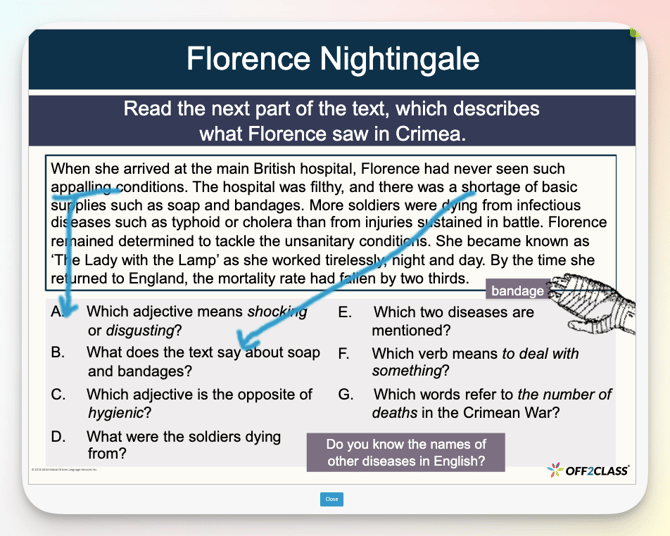
When students can write, they can:
- type into a text box
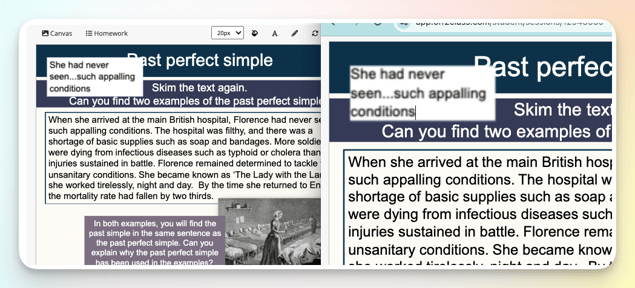
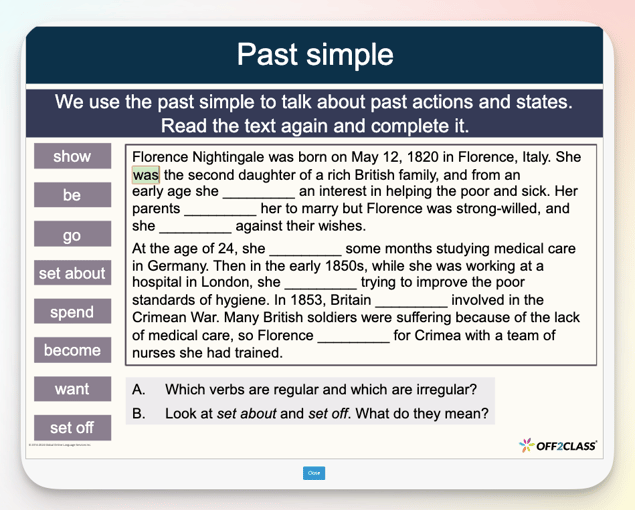
Gap-fills
Gap-fills don't need to be turned on. Students select the gap and type.
Scaffolding Menu
Students highlight a word and right-click it to open the Scaffolding Menu.
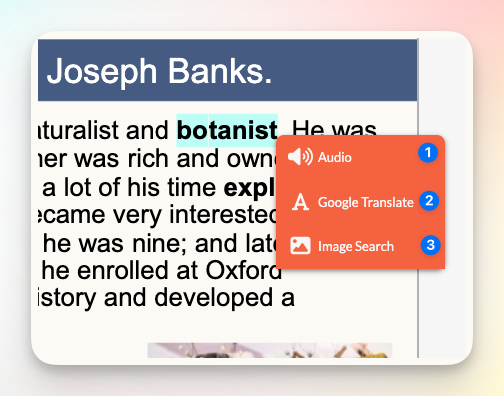
- Audio: hear the pronunciation of words or sentences
- Google Translate: translate the word into any language that Google translates to
- Image Search: open a new tab with image results for the highlighted text. Available when a student is working through lesson slides on their own. In a live lesson, only the teacher can run an image search. The results open in a new tab on the student's screen, and the student closes that tab to return to the lesson.
Classroom Chat
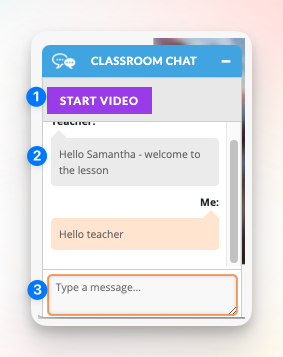
- Start Video: student selects this to go to your video conference room (if added)
- Chat: a message space visible to you and to every student enrolled in the lesson. There's no private channel to message one student individually.
- Type message here
Important: everything typed in Classroom Chat is visible to the whole class, not just to you. If you need to reach one student privately, use email or your school's messaging tool instead.
The Canvas
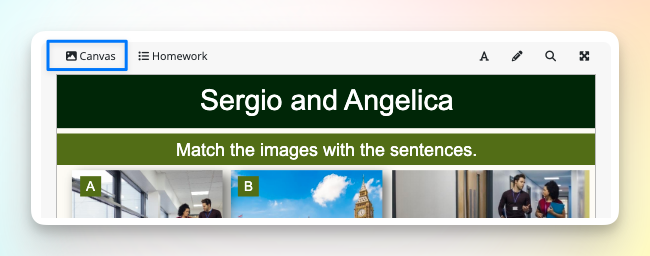
During a live lesson you (the teacher) are in control of opening and closing the canvas however, students can access the canvas when reviewing their lesson slides
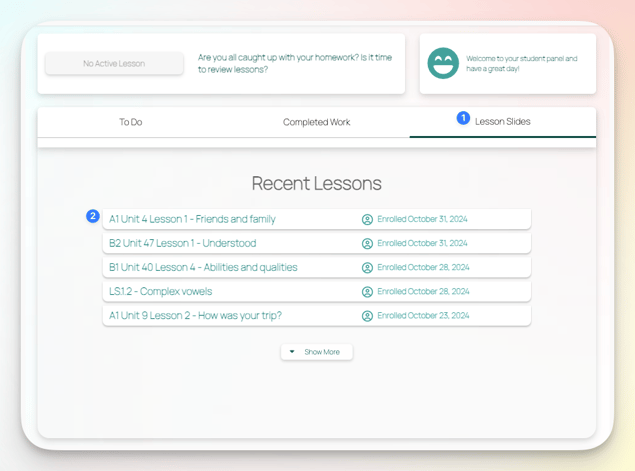
- Select the Lesson Slides tab, on the top right.
- Select a lesson to open it for review.
- Select Canvas in the top left corner of the lesson slides.
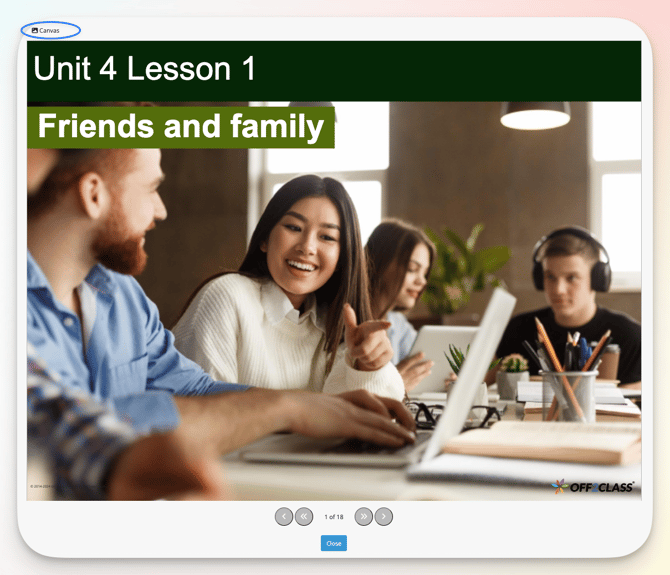
Students can review the canvas and interact with it, but no changes they make are saved once closed.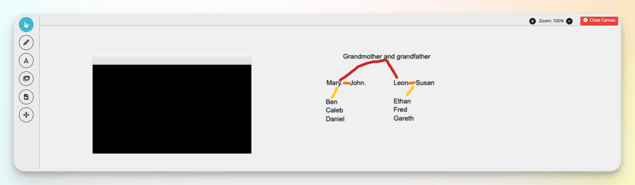
Canvas tools:
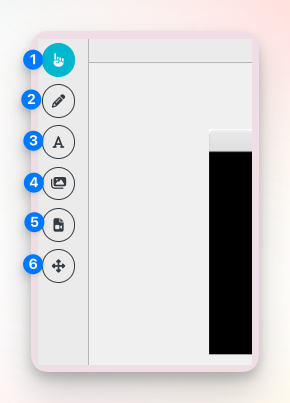
- Select objects: select individual objects to delete
- Pen tool: draw on the canvas
- Add text: make additional notes
- Add image: upload an image of extra practice exercises
- Add YouTube video: add video content
- Pan the canvas: the canvas is unlimited; pan to see other parts of the screen
Only the Canvas is saved for students to review after the lesson, and only on paid subscriptions. Chat messages, Scaffolding Menu translations and anything written or drawn on the slides aren't saved. To give students something to review after class, add it to the Canvas.
Note: Log in as your student to see exactly what they see.