
Available to all Teachers on paid and free subscriptions.
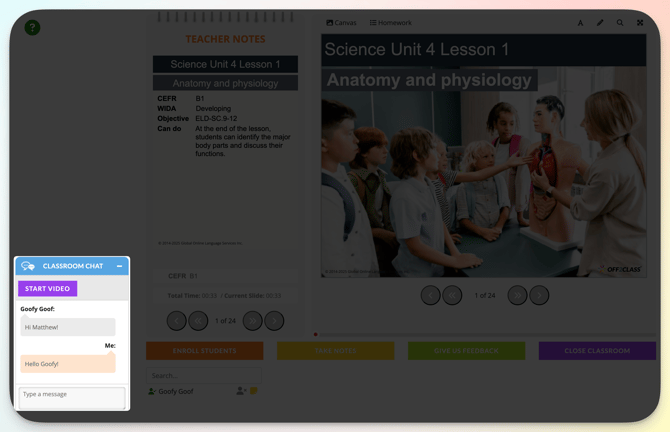
The classroom is composed of several different sections:
For a brief video overview of the classroom, click here.
- Lesson Slides: Interactive teaching materials at the heart of every Off2Class lesson. Teachers navigate through them using arrows, guiding students step by step through the content.
- Teacher Notes: Slide-by-slide resources that accompany Off2Class lessons with objectives, teaching tips, grammar explanations, exercise answers, and the lesson level (based on standards like WIDA or CEFR) to help teachers deliver lessons with minimal prep.
- Interactive Tools: Flexible ways for teachers to annotate, highlight, and customize the lesson experience during live classes. These tools make lessons more dynamic, engaging, and adaptable to individual teaching styles.
- Scaffolding Menu: A right-click feature that helps students understand new words in real-time through audio pronunciation, translation, and images—without leaving the lesson.
- Actions Bar: Quick access to management features, note-taking, feedback, and lesson-ending tools—all from one place, right under the lesson.
- Lesson Roster: Shows who’s enrolled, who’s joined, and lets teachers track participation, remove students, or take private notes—all during the live lesson.
- Chat: Message back and forth with your students during lessons, keep track of who’s joining or leaving, and quickly start video calls when needed.
Lesson Slides
Lesson slides are interactive teaching materials at the heart of every Off2Class lesson. Teachers navigate through them using arrows, guiding students step by step through the content.
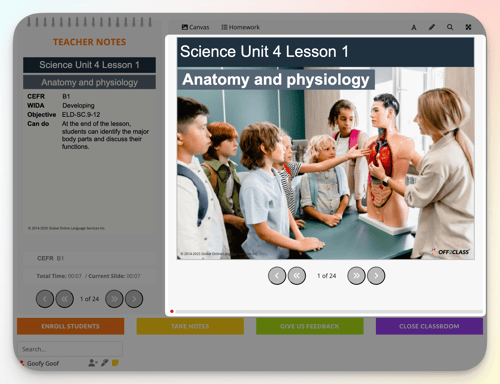
The lesson slides are in the middle right of the page. You can use the arrows below to navigate through the slides. You can switch to full screen by clicking the arrows icon on the top right of your screen.
Timeline
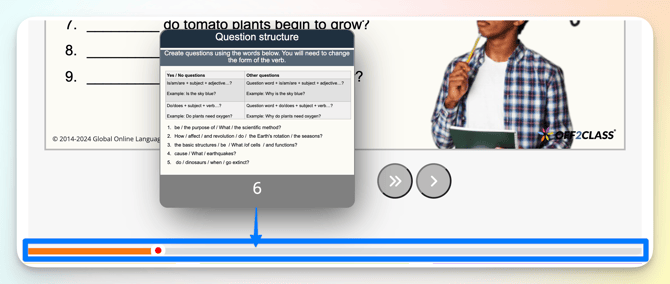
Hover over the timeline below the slides to preview different slides and click once you're ready to jump to the new slide.
Teacher Notes
Teacher Notes are slide-by-slide resources that accompany Off2Class lessons with objectives, teaching tips, grammar explanations, exercise answers, and the lesson level (based on standards like WIDA or CEFR) to help teachers deliver lessons with minimal prep. Teacher Notes also include extension questions and ideas for keeping students engaged.
You can hide Teacher Notes so that your students can't see them (e.g., if you're projecting your laptop on a screen) by clicking the arrows at the top right of your screen. Click the arrows again to bring it back.
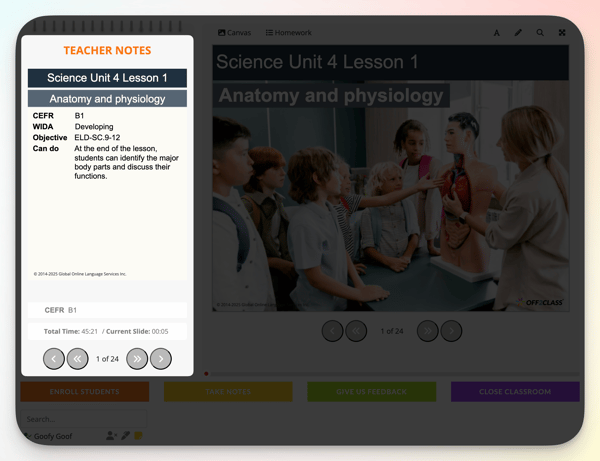
At the bottom of the Teacher Notes, we include the Framework and a time tracker.
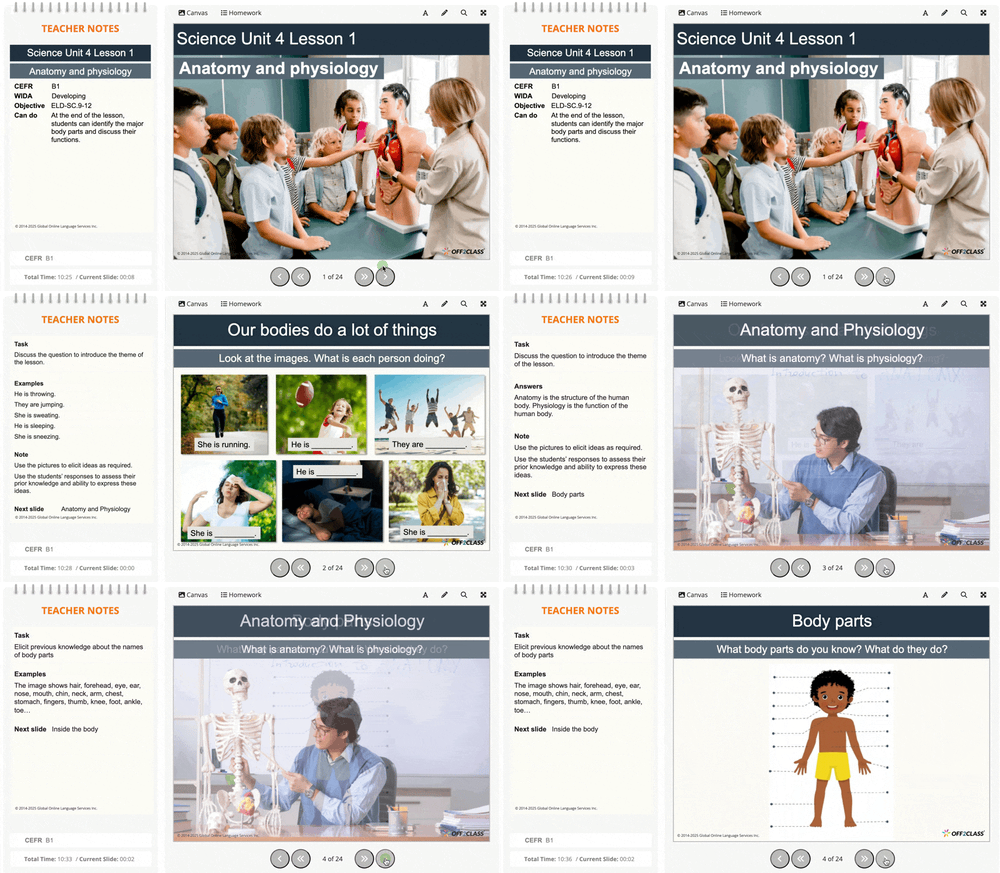
As you progress through the slides, the Teacher Notes will adjust to the lesson content, helping teachers deliver the material effectively.
Interactive Tools
Interactive Tools are flexible ways for teachers to annotate, highlight, and customize the lesson experience during live classes. These tools make lessons more dynamic, engaging, and adaptable to individual teaching styles.
During live lessons, interactive tools are shared. Anything typed, drawn, or entered on slides (including gap-fills) is visible to everyone enrolled in the lesson in real time. Off2Class does not currently support a private “individual mode” for interactive tools during live lessons.
For a brief video overview of the classroom interactive tools, click here.
Gap-fills
Gap-fills are enabled by default. You and all enrolled students can interact with the gap-fills.
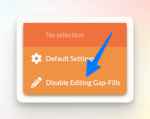
You can disable the gap-fills by right-clicking on the slide and selecting 'Disable Editing Gap-Fills'. To enable them again, right-click and select 'Enable Editing Gap-Fills'. Disabling the gap-fills disables them for teachers and students.
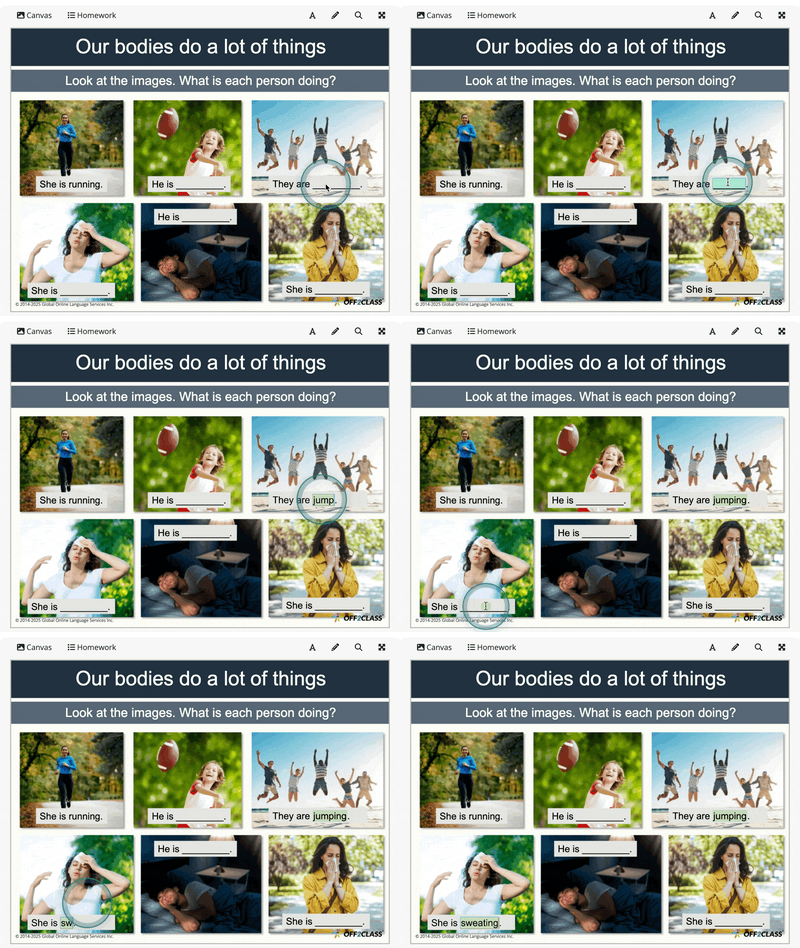
Teachers and students can interact with the gap-fills by clicking on them and typing.
Audio

- Controls: Play, pause, or start again at the beginning of the track only available to teachers in live lessons, but available to students in their Lesson Slides, for homework.
- Book icon: Open the transcript pop-up.
- Audio Transcript: Only available to the teacher during the lesson, but available to the students in their Lesson Slides, for homework. The transcript is not available on the dedicated listening activities lessons.
Write and draw on slides
The write and draw on slides features are disabled by default. They adapt to your classroom. When one student is enrolled, enabling write or draw on slides grants access to everyone by default — when more than one student is enrolled, access stays with the teacher by default. Teachers can always enable or disable student access individually or for the whole classroom using the annotation controls.
Once you move to the next slide or close the lesson, the edits made using the interactive tools are deleted. Settings are saved across slides, but you must enable the feature on the specific slide.
Write on slides
A draggable and editable free-text box overlayed on the lesson slide.
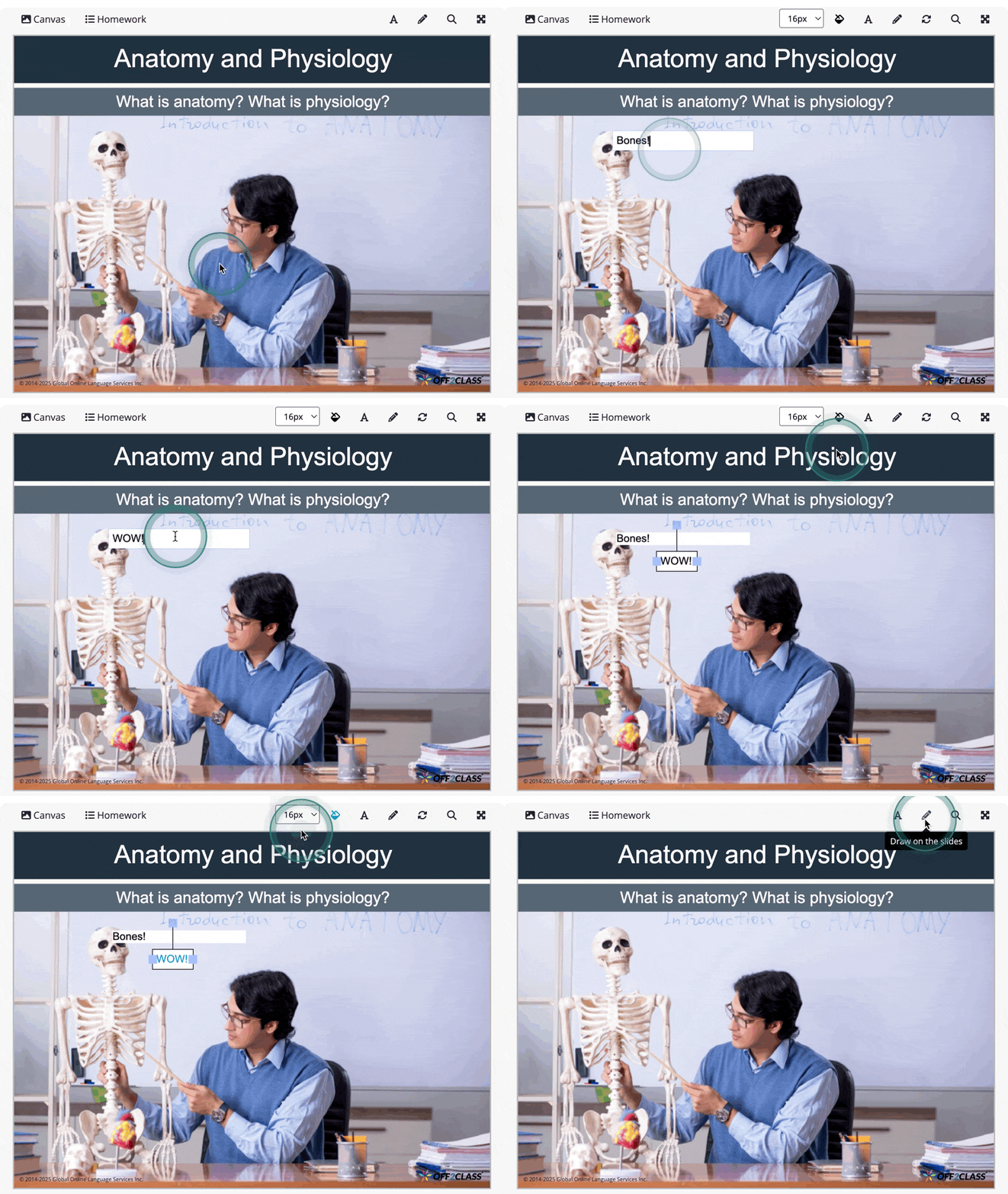
Note: Once a text box is created, it can be edited until it is deleted or until you move to the next slide.
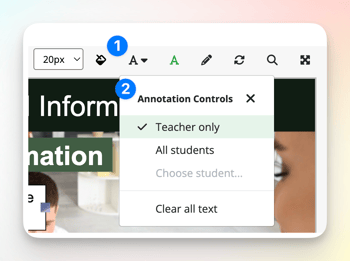
- Enable: Click on the 'A' icon above the lesson slides on the top right to enable the writing on slides feature and populate the first text box that you can edit, drag and manipulate the size and color
- Add another text box: Click on the 'A' icon again to create another box
- Edit the text: Click on the text box
- Resize text box: Click on it, then drag one of the sides to the left or right
- Change color: Click on the paint icon above the lesson slides and select a color
- Change text size: Use the menu to the left of the paint icon
- Delete text box: Click outside of the text box, then click the text box and click the delete key on your keyboard
- Reset: Click on the circular arrows above the lesson slides icon to reset the slides and disable the writing on slides feature
-
Annotation Controls: Interact with the 'Annotation Controls' menu option to manage student access and clear all text.
-
All students: To enable access for all students, select 'All students'
-
Specific students: To enable access for specific students, select ' Choose student...' then select the students you want to grant access to.
-
You can only grant access to specific students if they have joined the lesson
-
-
Clear all text: Select 'Clear all text'
-
Draw on slides
A customizable pen to draw on the lesson slide
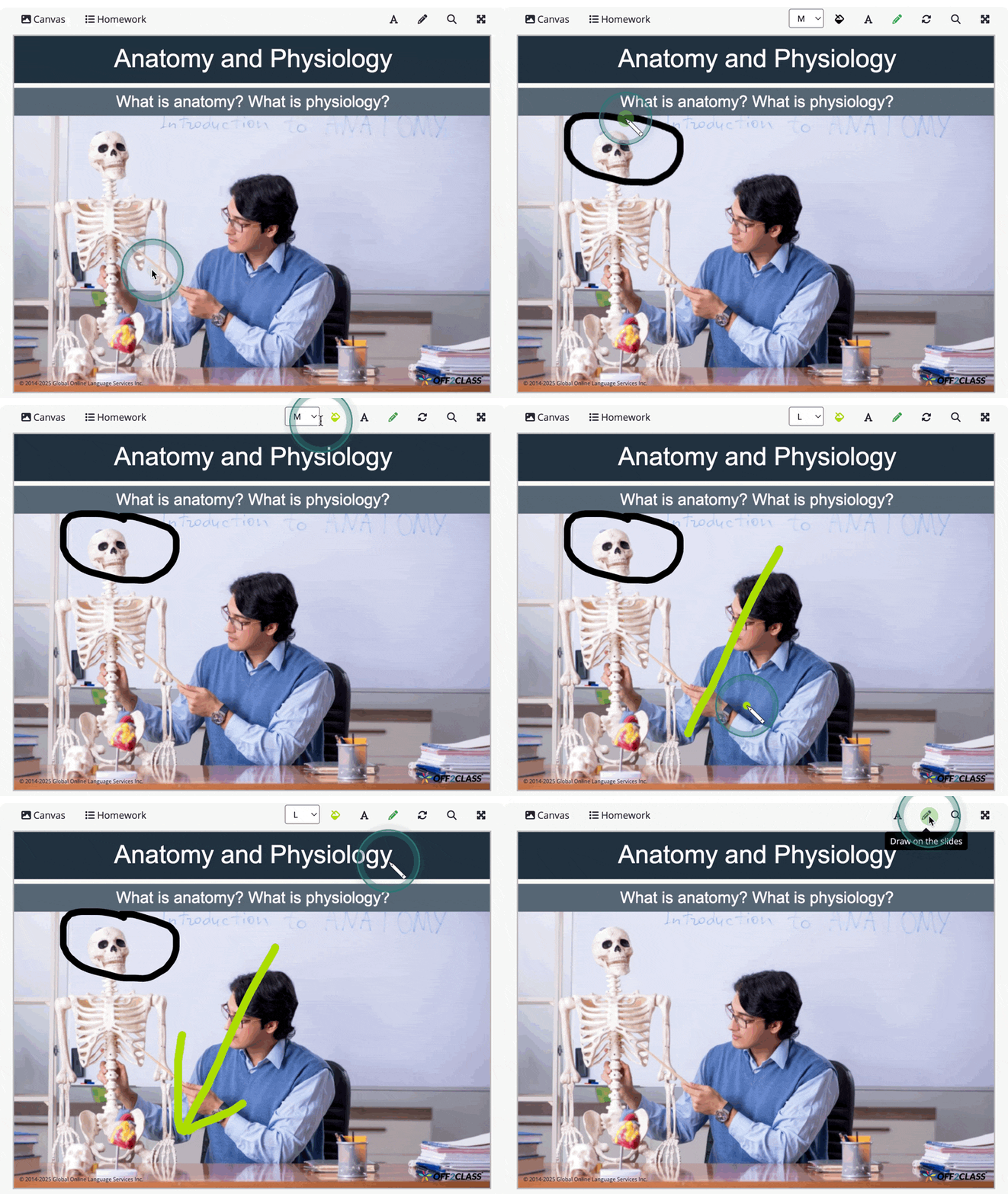
- Enable: Click on the pen icon above the lesson slides on the top right to enable the drawing on slides feature
- Change color: Click on the paint icon above the lesson slides and select a color
- Change brush thickness: Use the menu to the left of the paint icon
- Disable: Click on the pen icon again to disable the drawing on slides feature
- Delete: Click the pen again, then click the drawing and click the delete/back key on your keyboard
- Reset: Click on the circular arrows icon above the lesson slides to reset all the drawings and disable the drawing on slides feature.
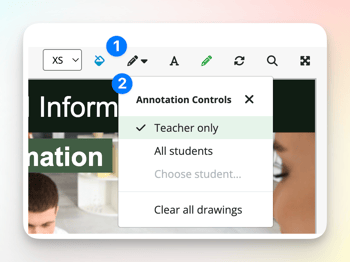
- Annotation Controls: Interact with the 'Annotation Controls' menu option to manage student access and clear all drawings.
- All students: To enable access for all students, select 'All students'
- Specific students: To enable access for specific students, select ' Choose student...' then select the students you want to grant access to.
- You can only grant access to specific students if they have joined the lesson
- Clear all drawings: Select 'Clear all drawings'
Zoom in on slides
Zoom in on specific parts of the slide.
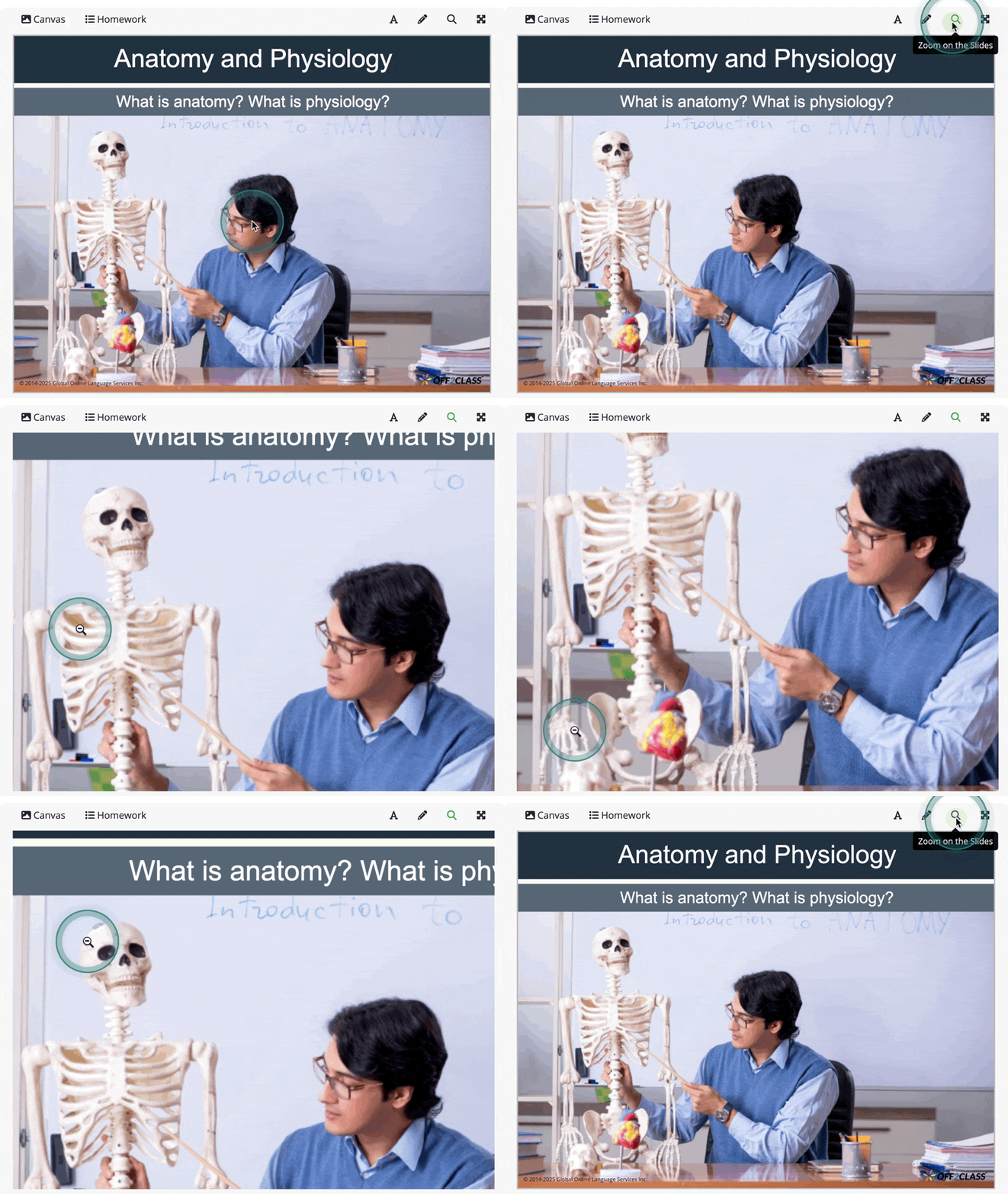
- Enable: Click on the magnifying glass icon above the lesson slides on the top right to enable the zooming feature
- Zoom in: Click on a part of the lesson you want to zoom in on and move your mouse around to change the view
- Zoom out: Click again to zoom back out
- Disable: Click on the magnifying glass icon again to disable the zoom in on slides feature
Canvas
An online whiteboard with options to write, draw, and add images
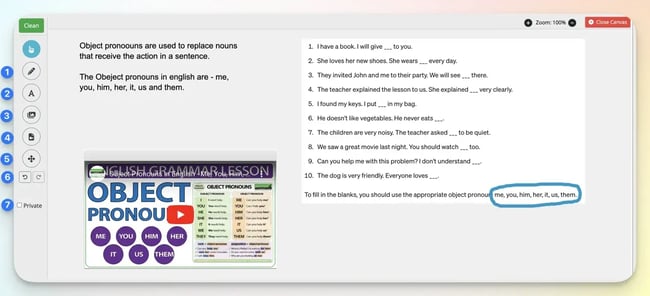
- Pen tool: draw on the canvas to customize it
- Add text: write free-text to additional resources or references
- Add image: take a screenshot of extra practice exercises for your student
- Add YouTube video: add video content to help explain a grammar point
- Pan the canvas: the canvas is unlimited; as you move it, it moves for your student, too
- Undo/redo: make quick corrections
- Private: check this box if you don't want your student to have access to the canvas outside of the classroom
Scaffolding Menu
A right-click feature that helps students understand new words in real-time through audio pronunciation, translation, and images—without leaving the lesson.
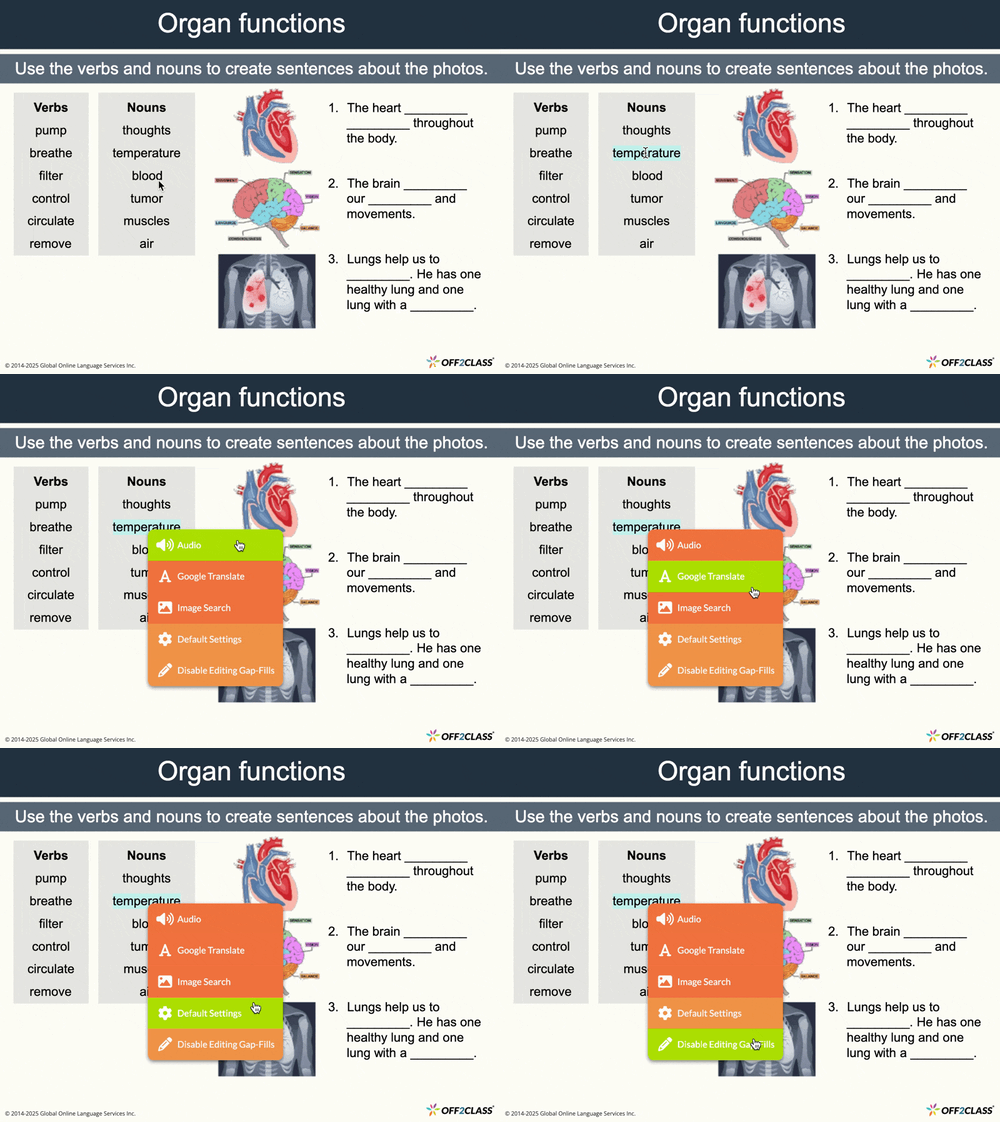
- Audio: Hear the pronunciation of the highlighted word. Available to teachers and students.
- Google Translate: Translate words into the students' native language. Available to teachers and students.
- Image Search: A Google image search. Available to teachers. If chat is enabled, the link will be sent to the classroom chat for the student to view.
- Settings (Teachers only): Set the default language for Google Translate and the picture search engine. Available to teachers.
- Disable/Enable Gap-Fills (Teachers only): Disable or enable editing gap-fills for teachers and students.
Actions Bar
Quick access to management features, note-taking, feedback, and lesson-ending tools—all from one place, right under the lesson.
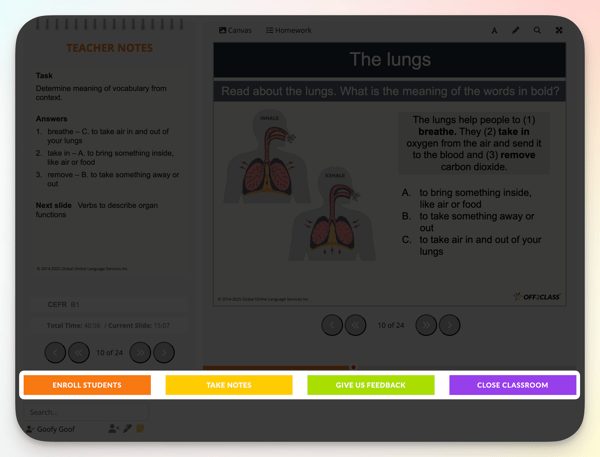
- Enroll students: Enroll individual students or classes in the lesson.
- Take notes on your students: Create a note for every student in the class.
- Give us feedback: Send feedback directly to the Off2Class team about this slide.
- Close classroom: End the lesson and optionally assign homework. You can preview the homework by clicking the 'Homework' button above the lesson slides next to the Canvas.
Note: Closing the tab or using the back arrow will not close the classroom or prompt for assigning homework. Always close using 'Close Classroom'.
Lesson Roster
Shows who’s enrolled, who’s joined, and lets teachers track participation, remove students, or take private notes—all during the live lesson.
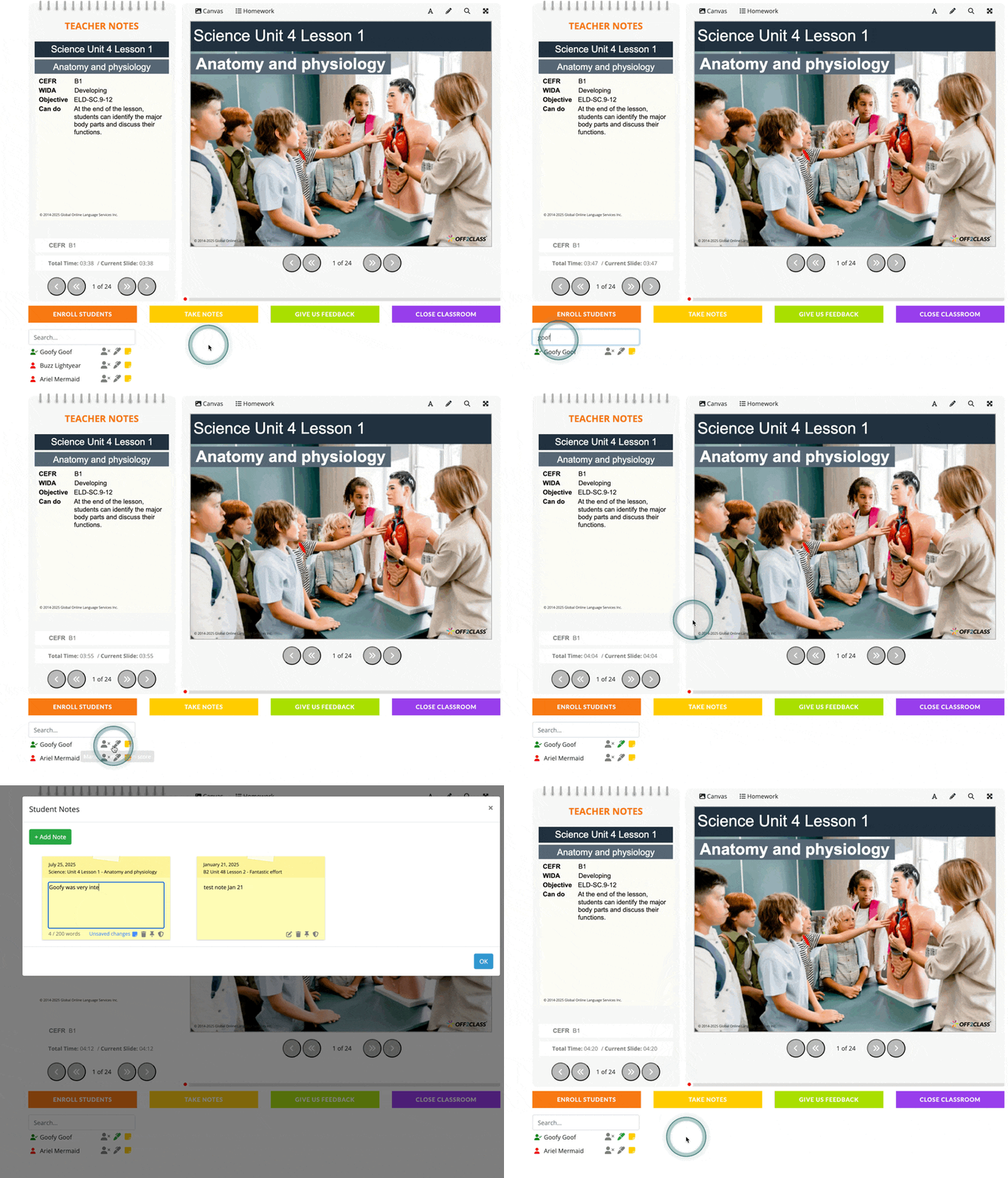
- Status: See who has joined the lesson by looking at the icon to the left of the student's name. Green means online, and red means offline.
- Search: Search for students enrolled in the active lesson.
- Remove: Remove students by clicking on the icon to the right of their name.
- Participation Score: Add a participation score by clicking the pencil icon (if a student was enrolled via a class)
- Note: Add a note to an individual student by clicking the yellow sticky note.
Chat
Message back and forth with your students during lessons, keep track of who’s joining or leaving, and quickly start video calls when needed.
- Chat: Send messages back and forth with your students. If you prefer that students don’t type or write on screen, disable the classroom chat. Just follow the steps in this article.
- Notifications: Get chat notifications when your students enter or exit the classroom.
- Video: Click 'Start Video' if you're teaching online and want to launch your video conferencing software.
New to the Off2Class classroom? Visit our Getting Started series in the Help Center for short video tutorials and guides that walk you through the main classroom features.
Related Articles:
- How can I view and search for lessons?
- How can I browse a lesson on my own? (without enrolling a student)
- How can I enroll my students in a live lesson?
- How can I learn more about the interactive tools (canvas, draw and write) in the classroom?
- How can I take notes on my students?
- How can I assign homework to my students?
- How can I use my video conferencing software with Off2Class?
- How can I add and manage the participation score for my students?
- What does the classroom look like for my students?