
The features mentioned in this article are available to all Teachers, although some features are limited on free subscriptions.
Table of contents
Understanding student capacity
Student capacity is the number of active students you can have on your account at one time.
For example, a subscription with a student capacity of 10 allows you to have up to 10 active students.
Teachers on paid subscriptions can also create unlimited classes within their student capacity.
If you reach your student capacity limit, you can:
- Increase your subscription
- Remove inactive students to free up capacity (paid subscriptions only)
Removing a student preserves their lesson history, homework, placement test results, and other data, allowing the student to be reactivated later.
Changing your student capacity
You can change your subscription at any time.
- Locate your account page, in the drop-down menu below your name in the top right.
- Click update now.
- Enter details:
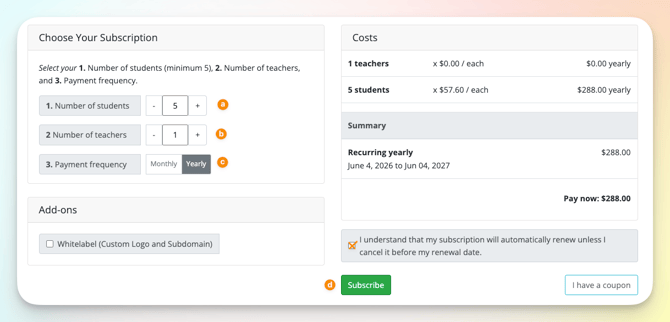
- Number of students
- Number of teachers
- Select yearly or monthly
- Click the green Subscribe button
Common changes include:
- Increasing student capacity
- Decreasing student capacity
- Switching between monthly and yearly billing
- Moving to a multi-teacher subscription
When increasing your subscription, any unused portion of your current subscription is automatically credited towards the new subscription. A new billing period begins on the date the change is made.
Changes take effect immediately after confirmation.
Decreasing student capacity
If you reduce your subscription to fewer students than are currently active on your account, your account will be locked until the number of active students matches your new student capacity.
To remove the extra students:
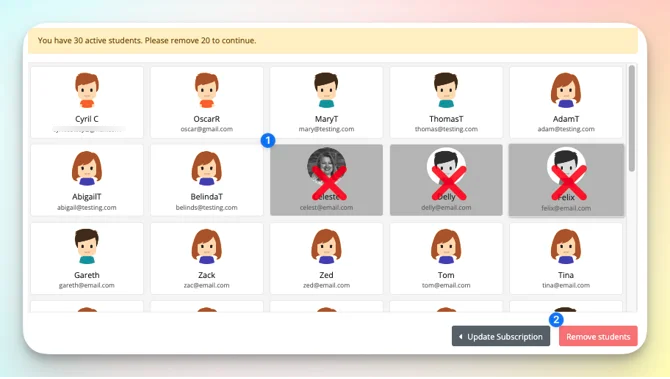
- Log in to Off2Class on a desktop or laptop computer. This process is not supported on mobile devices.
- Click Students and select the students you want to remove.
- Click the red Remove Students button in the bottom-right corner.
Once enough students have been removed, your subscription will automatically become active again.
Removed students are not permanently deleted. Their lesson history, homework, placement test results, and other data remain saved.
If you later increase your student capacity, you can add the same students back using their original email addresses. Their accounts will be reactivated with all previous data intact.
If you are unable to update your subscription, please contact Support.