The features mentioned in this section are only available to Teachers on individual paid and free subscriptions. Free subscribers can only view ratings, not disable the feature.
The ratings feature allows students to provide feedback on their lessons. Ratings help teachers monitor students’ satisfaction, and assist us to improve our lesson materials. At the end of each lesson in which students were enrolled for a minimum of 20 minutes, a panel appears for the students. Students can choose to skip or to answer the questions on the panel, leaving a rating between 1 and 5 stars. When we have collected sufficient feedback, we will begin to display aggregated ratings to teachers to help them monitor their students.
This article is composed of two sections
Managing student ratings as a teacher
How to disable (turn off) student ratings on paid individual plans
- Hover over your name in the top right and click Settings.
- Locate the Ratings section.
- Use the menu to toggle Disable Student Ratings.
- Click Save Settings, bottom left.
Ratings is enabled by default.
If you don’t see Ratings in your Settings, you’re likely on a plan with multiple teachers. In that case, the setting is controlled by an Enterprise Manager and won’t appear on your teacher account.
Privacy and anonymity (COPPA & GDPR)
- Student ratings are anonymous. Teachers cannot view ratings from individual students.
- Ratings only appear after they have been aggregated across a minimum number of students and submissions. This prevents individual ratings from being identified or inferred.
The features mentioned in this section are only available to Managers on multi-teacher subscriptions.
Managing student ratings as a Manager
For multi-teacher/district accounts, Managers control whether students can submit teacher and lesson ratings.
Enable or disable Ratings
- Start in Enterprise Management panel.
- Open the Settings card.
- Change Allow students to submit teacher and lesson ratings at the end of a lesson
- Default: Yes
- If Yes: Students can submit teacher and lesson ratings at lesson end.
Manage student ratings visibility by teachers
- Start in Enterprise Management panel.
- Open the Settings card.
- Change Allow teachers to view ratings provided by students setting as desired.
- Default: Yes (If set to ‘Yes,’ Teachers can view ratings provided by students.)
View student ratings
- Start in Enterprise Management panel.
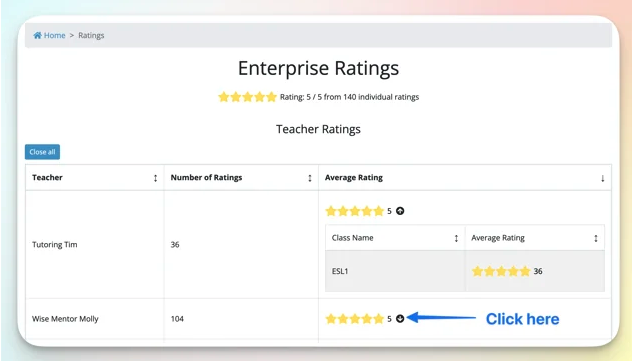
- Open the Ratings card.
- To see the Class where the feedback was provided, click on the drop-down arrow next to the rating.