
The features mentioned in this article are available to Teachers on all subscriptions and to Managers on paid multi-teacher subscriptions.
This article is composed of three sections:
- Logging in as a student (as a teacher)
- Logging in as a student (as a manager)
- Logging in as a teacher (as a manager)
Logging in as a student (as a teacher)
Teachers can log in as any of their students to view the platform exactly as the student sees it. This is the fastest way to confirm what a student can access on their account.
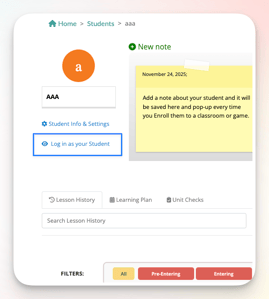
- Start in the Student Management Panel and click the student's name.
- Click ‘Log in as your student’.
Student view
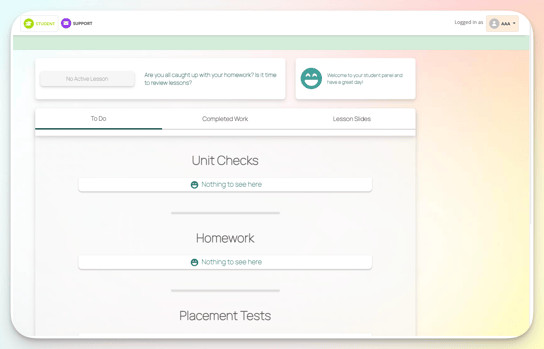
Click the different tabs to see their ‘To do’ assignments, completed work and lesson slides.
To exit the student’s view, hover over their name and click Leave user—this is required, as closing the tab or logging out without using Leave user will keep you in student mode the next time you sign in.
Logging in as a student (as a manager)
Logging in as a student as a manager is only available to Managers on paid multi-teacher subscriptions.
- Start in the Enterprise Management Panel and click the 'students' card.
- Locate the student and click ‘Login as’ on the same row.
You are now viewing the student’s account with their permissions. You can confirm who you’re logged in as by viewing the top right of your screen.
To exit the student’s view, hover over their name and click ‘Leave user’.
Logging in as a teacher (as a manager)
Logging in as a teacher is only available to Managers on paid multi-teacher subscriptions.
- Start in the Enterprise Management Panel and click the 'teachers' card.
- Locate the teacher and click ‘Login as’ on the same row.
You are now viewing the teacher’s account with their permissions. You can confirm who you’re logged in as by viewing the top right of your screen.
This view is useful for understanding teacher activity. You can check when the teacher last logged in, which lessons they accessed, which students they worked with, and how long they spent in lessons.
To exit the teacher’s view, hover over their name and click ‘Leave user’.