
The Enterprise Management Panel and all features mentioned in this article are only available to Managers on paid, multi-teacher subscriptions.
The dashboard allows you to track account data, visualize usage and make data-driven decisions.
Table of Contents
- Using dashboard filters
- Number of student enrollments
- Minutes spent in classrooms by students
- Minutes spent in classrooms by teachers
- With enrolled students
- Without enrolled students
- Synchronous vs asynchronous time
- Homework reports
- Assignments per week
- Submissions per week
- Status of assigned homework
- Submitted vs reviewed homework
Using dashboard filters
- Start in the Enterprise Management Panel.
- Click the Dashboard card.
- Use the filters at the top to refine your data
- Date range
- Teacher
- Class
- Click Apply Filter to update all charts.
Number of student enrollments
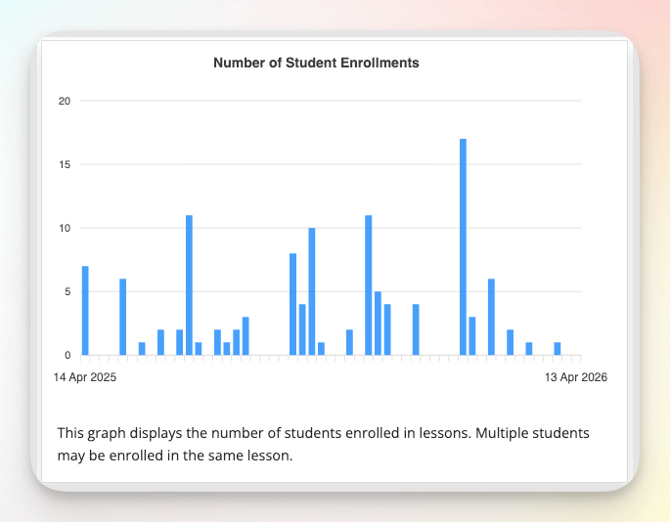
This graph displays the number of students enrolled in lessons. Multiple students may be enrolled in the same lesson.
Example: If you have 6 students and 4 of them are enrolled in two lessons, the count will be 8.
Assigning a course will not increase the enrollment count. (but it will add to the homework assignments chart)
Minutes spent in classroom by students
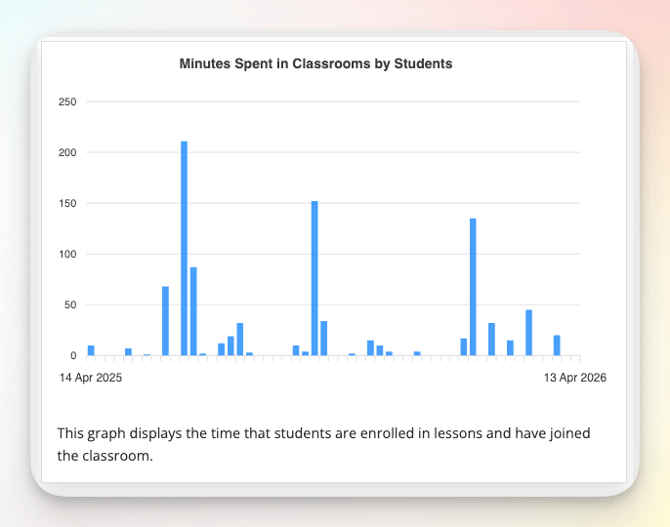
This graph displays the time students are enrolled in lessons and have joined the classroom.
- Time starts counting after one minute.
- Each session is capped at 50 minutes.
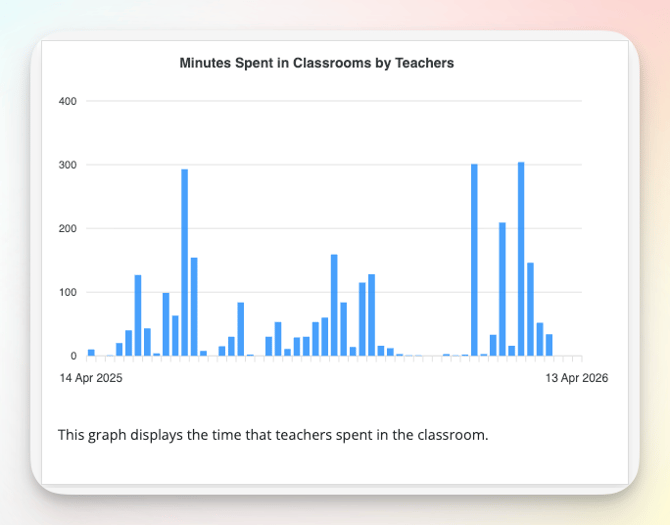
Minutes spent in classroom by teachers
With enrolled students
This graph displays the time that teachers spent in the classroom.
Specifically:
- A teacher has launched a lesson AND
- Students are enrolled AND
- The lesson exceeds 1 minute.
Without enrolled students
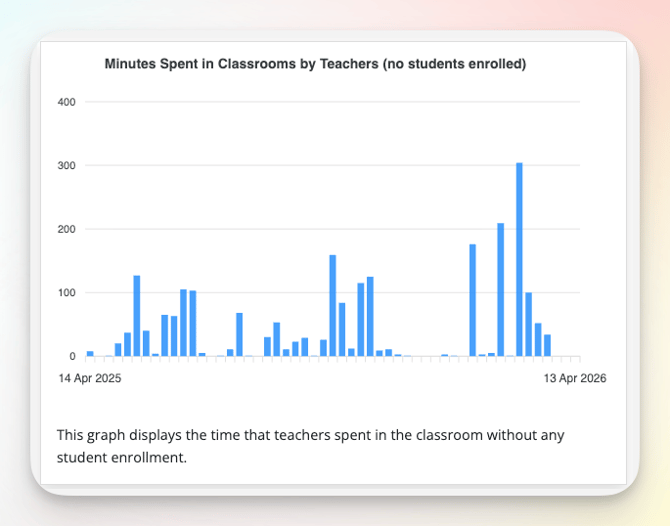
This graph displays the time that teachers spent in the classroom.
Specifically:
- A teacher has launched (browsed) a lesson.
Synchronous vs Asynchronous time
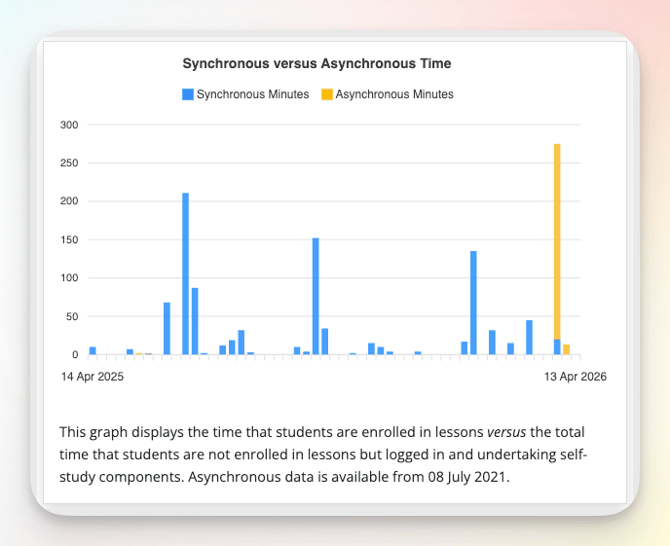
This graph compares
- Synchronous time: time that students are enrolled in lessons.
- Asynchronous time: total time that students are not enrolled in lessons but logged in and undertaking self-study components.
Note: Asynchronous data is available from 08 July 2021.
Homework Reports
Assignments per week
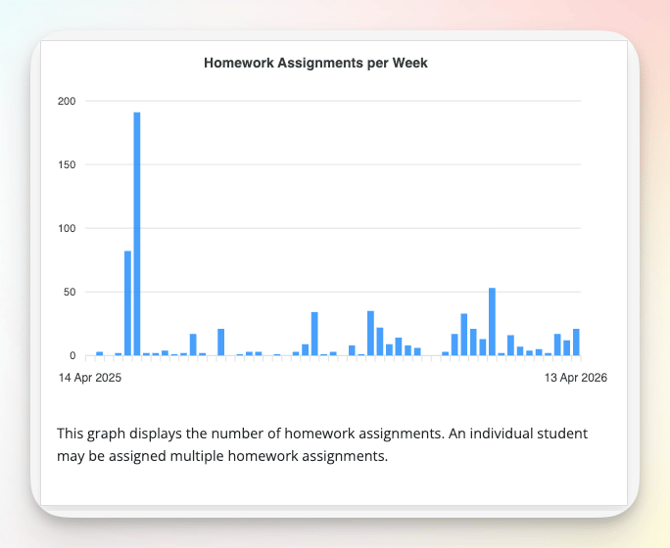
This graph displays the number of homework assignments. An individual student may be assigned multiple homework assignments.
Submissions per week
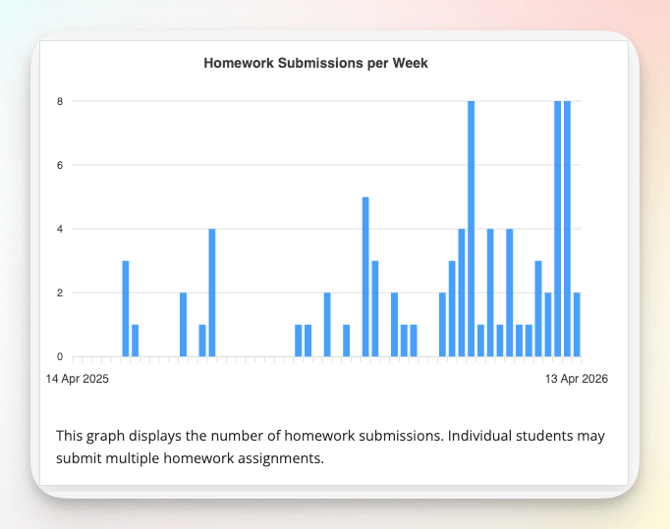
This graph displays the number of homework submissions. Individual students may submit multiple homework assignments.
Status of assigned homework
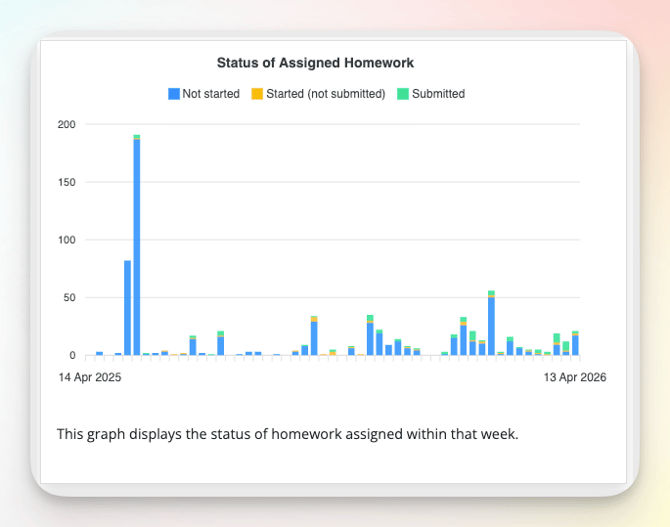
This graph displays the status of homework assigned within that week.
Submitted vs reviewed homework
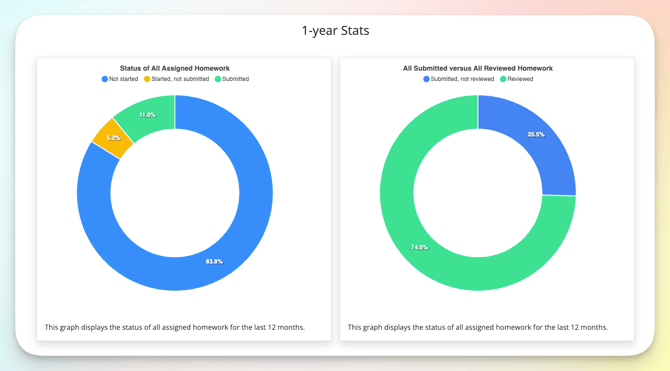
These charts display the status of all assigned homework for the last 12 months.
Related Articles: