The Enterprise Management Panel and all features mentioned in this article are only available to Managers on paid, multi-teacher subscriptions. Data exports are limited to information that the Manager is otherwise authorized to access within their Off2Class account.
The Export card in the Enterprise Management Panel allows you to download different types of teacher and student data as .CSV files. These files can be opened in tools like Excel or Google Sheets for reporting and analysis. A download link will be sent to your email within a few seconds from app.off2class.com.
Each file covers every teacher or student in your account. To see one school, grade or teacher, open the file in Excel or Google Sheets and filter by the Student's Teachers or Student's Classes column.
Table of Contents
Exporting Teacher Data
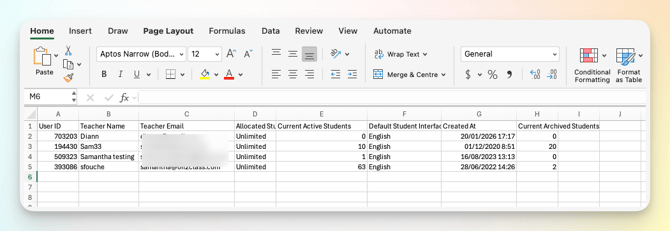
Teacher account data
- Go to the Enterprise Management Panel.
- Click the Export card.
- Click 'Download your teacher account data in CSV'.
A download link will be sent to your email within a few seconds from app.off2class.com.
The file contains the following information:
- User ID
- Teacher Name
- Teacher Email
- Allocated Student Slots
- Current Active Students
- Default Student Interface Language
- Created At
Below is an example of what the file would look like after the .CSV file is opened in an app like Google Sheets or Excel.
Teacher lesson history data
- Go to the Enterprise Management Panel.
- Click the Export card.
- Click 'Get your teacher lesson history data in CSV'.
A download link will be sent to your email within a few seconds from app.off2class.com.
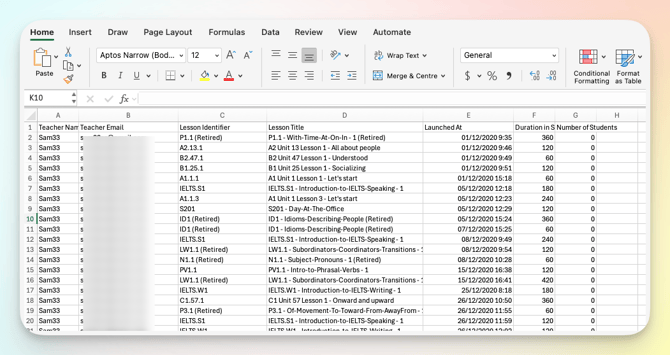
The file contains the following information:
- Teacher Name
- Teacher Email
- Lesson Identifier
- Lesson Title
- Launched At
- Duration in Seconds (time elapsed between launching and closing the lesson)
- Number of Students (enrolled in the lesson)
Below is an example of what the file would look like after the .CSV file is opened in an app like Google Sheets or Excel.
Teacher homework history data
- Go to the Enterprise Management Panel.
- Click the Export card.
- Click 'Get your teacher homework history data in CSV'.
A download link will be sent to your email within a few seconds from app.off2class.com.
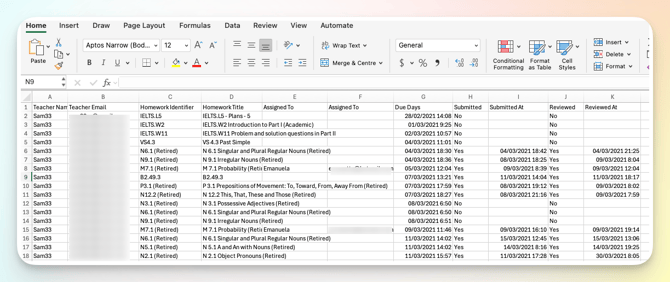
The file contains the following information:
- Teacher Email
- Homework Identifier
- Homework Title
- Assigned To
- Assigned At
- Due Days (If the teacher did or didn't set a due date when assigning the homework.)
- Submitted (Yes or No)
- Submitted At
- Reviewed (Yes or No)
- Reviewed At
Below is an example of what the file would look like after the .CSV file is opened in an app like Google Sheets or Excel.
Student Data
Student account data
- Go to the Enterprise Management Panel.
- Click the Export card.
- Click 'Get your student account data in CSV'.
A download link will be sent to your email within a few seconds from app.off2class.com.
The file contains the following information:
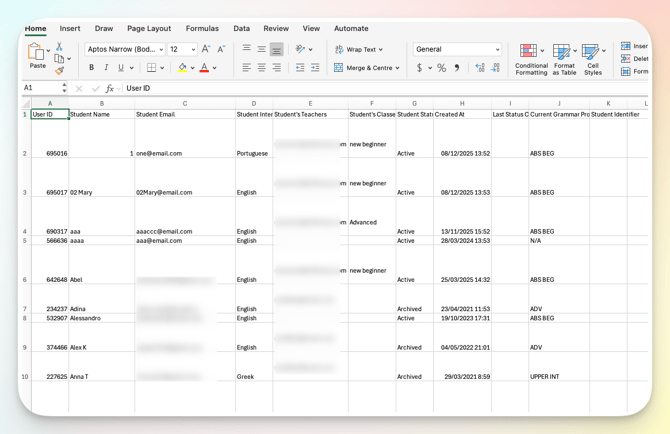
- User ID
- Student Name
- Student Email
- Student Interface Language
- Student's Teachers
- Student's Classes
- Student Status
- Created At
- Last Status Change
- Current Grammar Proficiency Level
- Student Identifier
Below is an example of what the file would look like after the .CSV file is opened in an app like Google Sheets or Excel.
Student placement test results
- Go to the Enterprise Management Panel.
- Click the Export card.
- Click 'Get your student placement test results in CSV'.
A download link will be sent to your email within a few seconds from app.off2class.com.
The file contains the following information:
- Student Name
- Student Email
- Student Interface Language
- Student's Teachers
- Student's Classes
- Student Status
- Student Created At
- Test Assigned On
- Test Submitted At
- Student Identifier
- Test Assigned Class
- Test Type (e.g. standard or adaptive)
- Grammar Proficiency Level
- Reading Proficiency Level
- Listening Proficiency Level
- Writing Proficiency Level
- Speaking Proficiency Level
- Grammar - Questions Attempted
- Grammar - Questions Correct
- Reading - Questions Attempted
- Reading - Questions Correct
- Listening - Questions Attempted
- Listening - Questions Correct
- Writing - Questions Attempted
- Speaking - Questions Attempted
- Speaking - Final Question Level
- Writing - Final Question Level
- Test Status
Writing and Speaking – Final Task Level: These columns show the level of the last task the student completed in the Writing and Speaking sections. Keep in mind that if the final task is level A2, the student's placement is capped at B1+ (they won't be placed at B2 or C1). For final tasks above A2, students can be placed at any level.
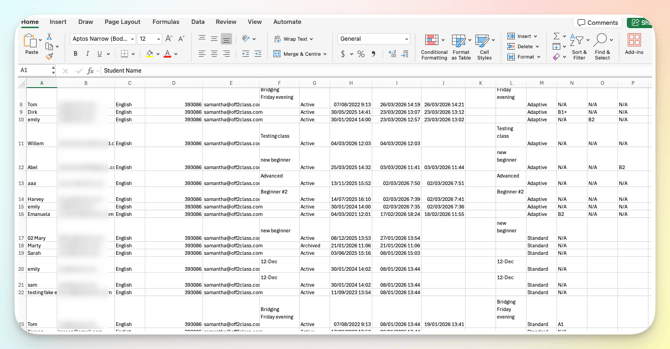
Below is an example of what the file would look like after the .CSV file is opened in an app like Google Sheets or Excel.
Student lesson history data
- Go to the Enterprise Management Panel.
- Click the Export card.
- Click 'Get your student lesson history data in CSV'.
A download link will be sent to your email within a few seconds from app.off2class.com.
The file contains the following information:
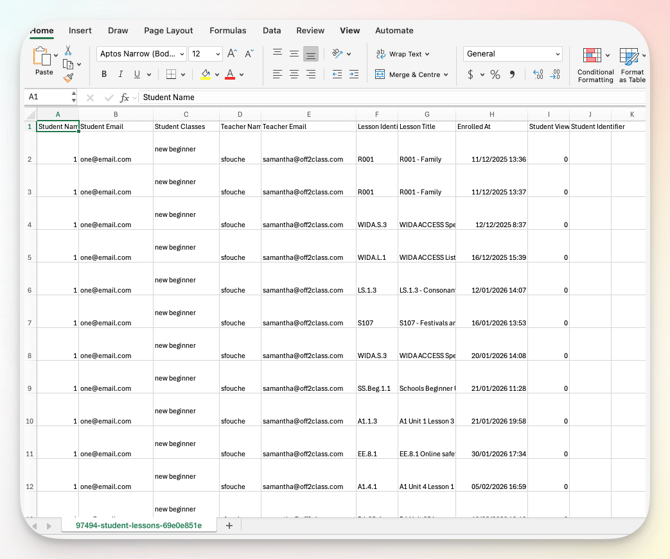
- Student Name
- Student Email
- Student Classes
- Teacher Email
- Lesson Identifier
- Lesson Title
- Enrolled At
- Student Viewed For (in Seconds)
- Student Identifier
Below is an example of what the file would look like after the .CSV file is opened in an app like Google Sheets or Excel.
Student homework history data
- Go to the Enterprise Management Panel.
- Click the Export card.
- Click 'Get your student homework history data in CSV'.
A download link will be sent to your email within a few seconds from app.off2class.com.
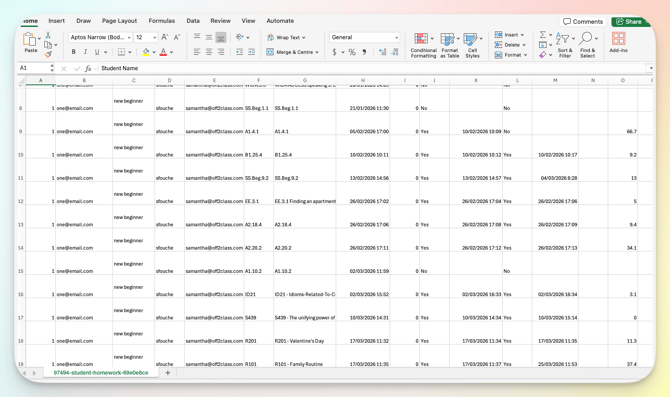
The file contains the following information:
- Student Name
- Student Email
- Student Classes
- Teacher Email
- Homework Identifier
- Homework Title
- Assigned At
- Due Days
- Submitted
- Submitted At
- Reviewed
- Reviewed At
- Student Identifier
- Score
Below is an example of what the file would look like after the .CSV file is opened in an app like Google Sheets or Excel.
Student progress data results
This file has your students' unit check results.
- Go to the Enterprise Management Panel.
- Click the Export card.
- Click 'Get your student progress data results in CSV'.
A download link will be sent to your email within a few seconds from app.off2class.com.
The file contains the following information:
- Student Name
- Student Email
- Student Interface Language
- Student's Teachers
- Student's Classes
- Student Status
- Student Created At
- Test Name
- Test Assigned On
- Test Submitted At
- % score
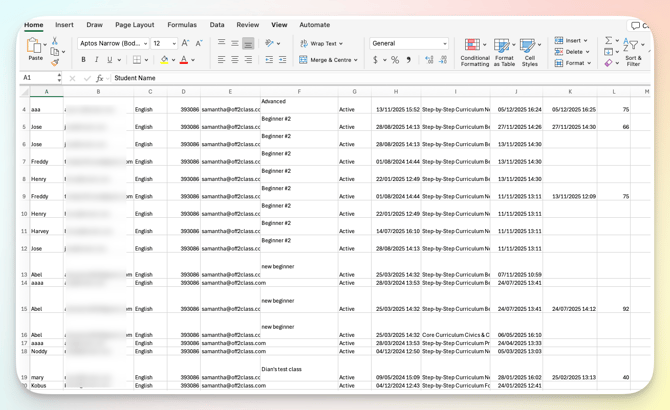
Below is an example of what the file would look like after the .CSV file is opened in an app like Google Sheets or Excel.
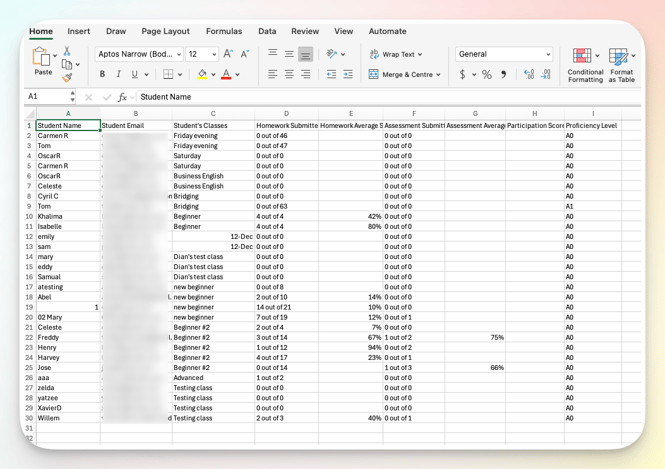
Class average, assignment scores, participation grade and proficiency level
- Go to the Enterprise Management Panel.
- Click the Export card.
- Click 'Get your class average assignment scores, participation grade and proficiency level in CSV'.
A download link will be sent to your email within a few seconds from app.off2class.com.
The file contains the following information:
- Student Name
- Student Email
- Student's Classes
- Homework Submitted
- Homework Average Score (%)
- Assessment Submitted
- Assessment Average Score (%)
- Participation Score (%)
- Proficiency Level
Below is an example of what the file would look like after the .CSV file is opened in an app like Google Sheets or Excel.