
Who this is for: teachers
Available to: teachers on all subscriptions. Free subscriptions include a limited number of lessons.
Before you start: Nothing.
Contents
- To view lessons, start in the Lesson Library
- Find lessons by skill
- Scroll down the page to find more curriculum and lesson categories
- Use the search bar at the top to search for lessons
- Each result shows the lesson's Language focus and Topic
- See the skills a lesson covers
To view lessons, start in the Lesson Library
Tip: to see every lesson and its objective in one list, see Where can I see a list of all your lessons?
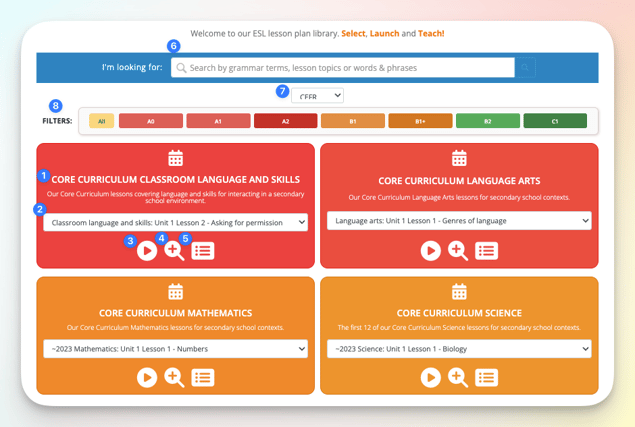
The Lesson Library gives you visibility into all of the lessons on your account.
- View the name of the curriculum or category of lessons
- Scroll through the list of the individual lessons in the section
- Launch lesson
- Preview lesson
- Preview Independent Practice
- Search
- Toggle Framework (WIDA, CEFR, TELPAS, CA ELD, ELPA21 and NY).
- Filter by proficiency level
Find lessons by skill
The Skill filter shows only the lessons that teach the skills you pick. It sits under Framework, and its levels follow the framework you've selected.
If a level is already selected in the level bar, the library shows every lesson at that level as well as the lessons for your skills. To see only the lessons for your skills, select All in the level bar first.
- Under Framework, open the Skill menu. It shows All skills until you pick one.
- Select a level on the left.
- Optional: to find a skill, enter a word in Search skills. The search covers the open level only.
- Select the checkbox next to each skill you want. You can combine skills from different levels.
- Select the Skill menu again to close it.
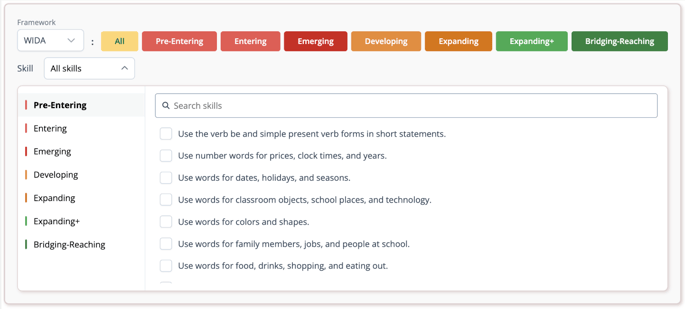
Result: the menu shows how many skills you've selected, for example 1 skill selected. The level bar switches to the level of your skills, and each lesson card's drop-down lists only the matching lessons. Cards with no match have an empty drop-down.
To clear the filter, open Skill and clear each checkbox. Changing the framework or reloading the page also clears it.
Tip: Independent Practice (Homework) and Placement Test results show the skill behind each question. On the Adaptive Placement Test, that's Reading and Listening questions for now. When one skill keeps coming up in missed questions, find it here to get lessons that target it.
Scroll down the page to find more curriculum and lesson categories
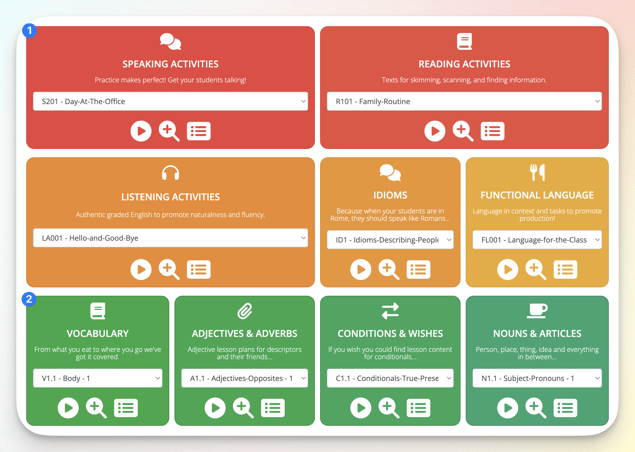
Use the search bar at the top to search for lessons
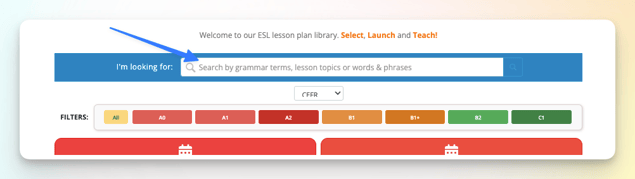
You can search for:
- The name of the curriculum or lesson category
- The name of the lesson
- The objective of the lesson
- The Can-do statement of the lesson
- The lesson's domain (for example, Speaking or Reading)
- The grammar topic (e.g. present simple, past continuous, linking words)
The search bar doesn't search lesson skills. To find lessons by skill, use the Skill filter. See Find lessons by skill.
Teachers on the free plan can access all lessons that are not marked with a “+”. Download the list of available lessons here.
Each result shows the lesson's Language focus and Topic
Language focus: the grammar or language point the lesson teaches
Topic: the subject matter it uses to teach that point
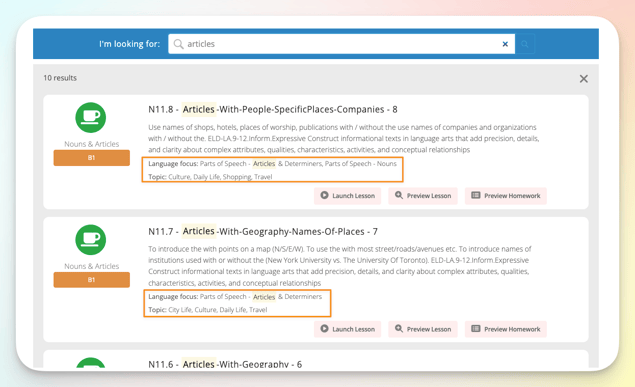
To see how to teach a lesson, not just find it, open its Teacher Guide or Teacher Notes. See Teacher Guides.
See the skills a lesson covers
Each lesson is tagged with the skills it teaches. The skills are grouped by domain, such as Vocabulary, Writing and Speaking.
- In the Lesson Library, select a lesson from the drop-down on a lesson card.
- On the same card, select Skills.
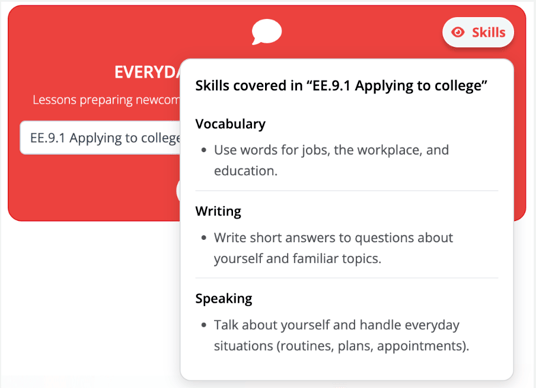
Result: a list of the skills covered in that lesson opens. Select Skills again to close it.
A few lessons aren't tagged yet. They show "No skills have been tagged for this lesson yet."
Related articles
- Launch a lesson
- Classroom
- How can I use proficiency level filters in the lesson library?
- Where can I see a list of all your lessons?
- How can I review and share my students' Placement Test results?