Who this is for: teachers
Available to: teachers on all subscriptions
Before you start: Nothing.
Students see their own home page and their own view of the Classroom. The easiest way to see exactly what a student sees is to log in as your student.
Contents
Joining a live lesson
When students log in, they see their student home page. The Join Lesson button is active when they're enrolled in a live lesson, and they select it to join you in the Classroom.

If your video conferencing is linked to your Off2Class profile, students select Start Video in the Classroom Chat at the bottom left to join the video call.
In the Classroom
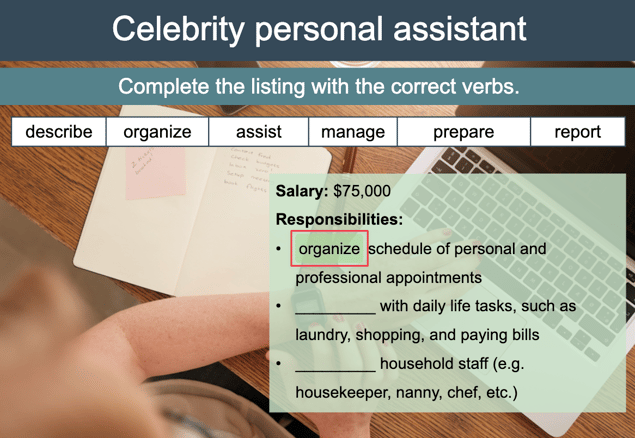
Students follow along as you move through the slides. Students select a gap and type their answer. Gap-fills are on by default. To turn them off, right-click the slide and select Disable Editing Gap-Fills.
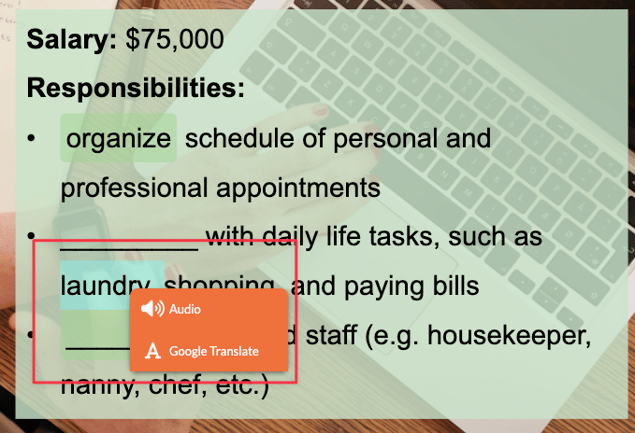
Students highlight a word or phrase and right-click it to open the Scaffolding Menu. In a live lesson, the menu offers Audio and Google Translate. These scaffolds appear only on the screen of the student who requested them. Image search in a live lesson is run by the teacher, and the results open in a new tab on students' screens. The link also appears in the Classroom Chat, and students close the tab to get back to the lesson. When students review lesson slides on their own, they can run the image search themselves.
Outside of class
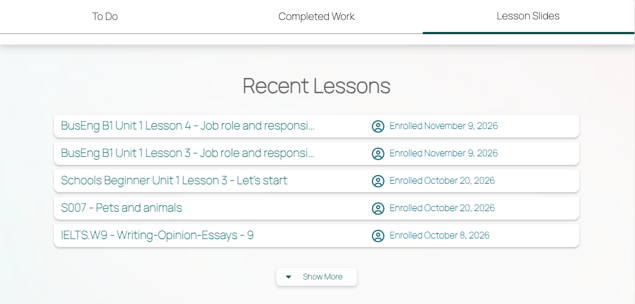
Students can log in at any time to complete Unit Checks, Independent Practice (Homework) and Placement Tests, and to review past lessons. Their home page has three tabs.
To Do
Lists all assigned work that isn't finished yet. Students select an item to complete it.
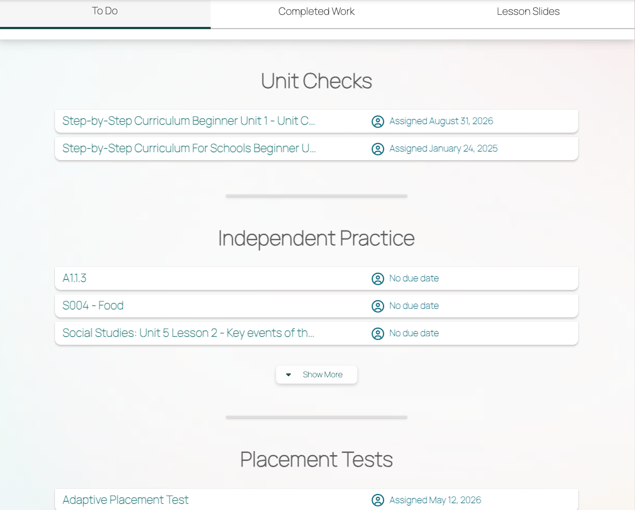
- Unit Checks: name and date assigned.
- Independent Practice: lesson title and due date, if you set one.
- Placement Tests: tests that are assigned and not yet submitted.
Completed Work
Lists all finished assignments.
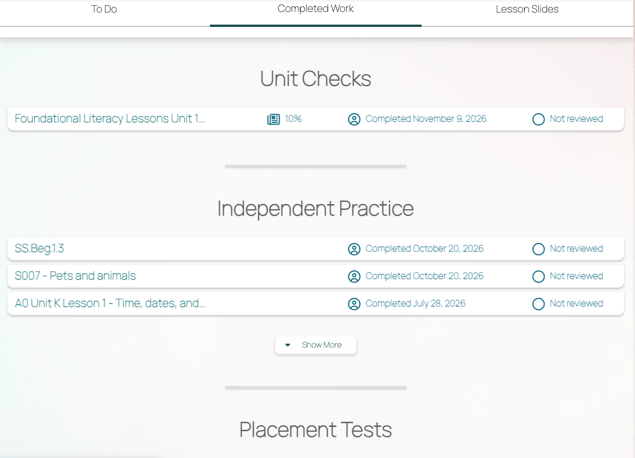
- Unit Checks: name, score, completion date and review status. Students select one to see their results and the answer key.
- Independent Practice: lesson name, score, completion date and review status. Students select one to see your feedback and the answer key.
- Placement Tests: completion date. Students can see their results if you've unlocked them.
Lesson Slides
Lists the student's recent lessons with the date they were enrolled. Students select a lesson to review its slides, including the Canvas from that lesson.