
Who this is for: teachers
Available to: teachers on all subscriptions. On free accounts, a limited number of lessons, and no enrolling multiple students or classes.
Before you start: to enroll students they need active accounts, and to enroll a class the class has to exist already.
Contents
- Browse a lesson on your own
- Enroll students or a class while you launch a lesson
- Enroll students or a class from the Classroom
- End the lesson
- Things to know
Browse a lesson on your own
Browsing opens the lesson for you alone, so you can look through the slides before you teach them.
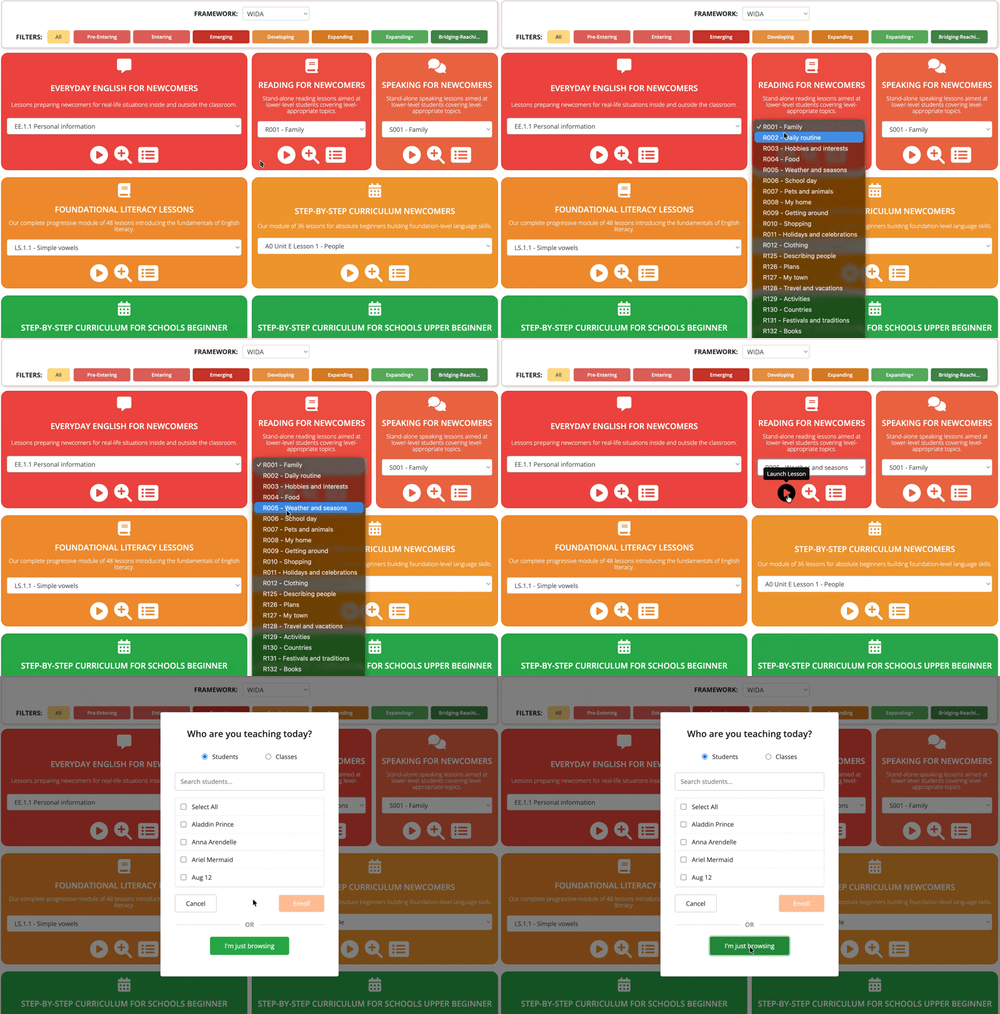
- Go to the Lesson Library.
- Find the lesson group you want to teach, such as Foundational Literacy or Business English.
- Select the dropdown menu for that lesson group to expand the lesson list.
- Select the lesson you want to launch.
- Select the play button.
- Select I'm just browsing.
Result: the Classroom opens and you can interact with the lesson slides.
Enroll students or a class while you launch a lesson
Enrolling puts the lesson in each student's history and gives them the slides to review afterward. It is also what lets you assign the homework for that lesson. During the lesson, enrolled students can interact with the slides from their own device.
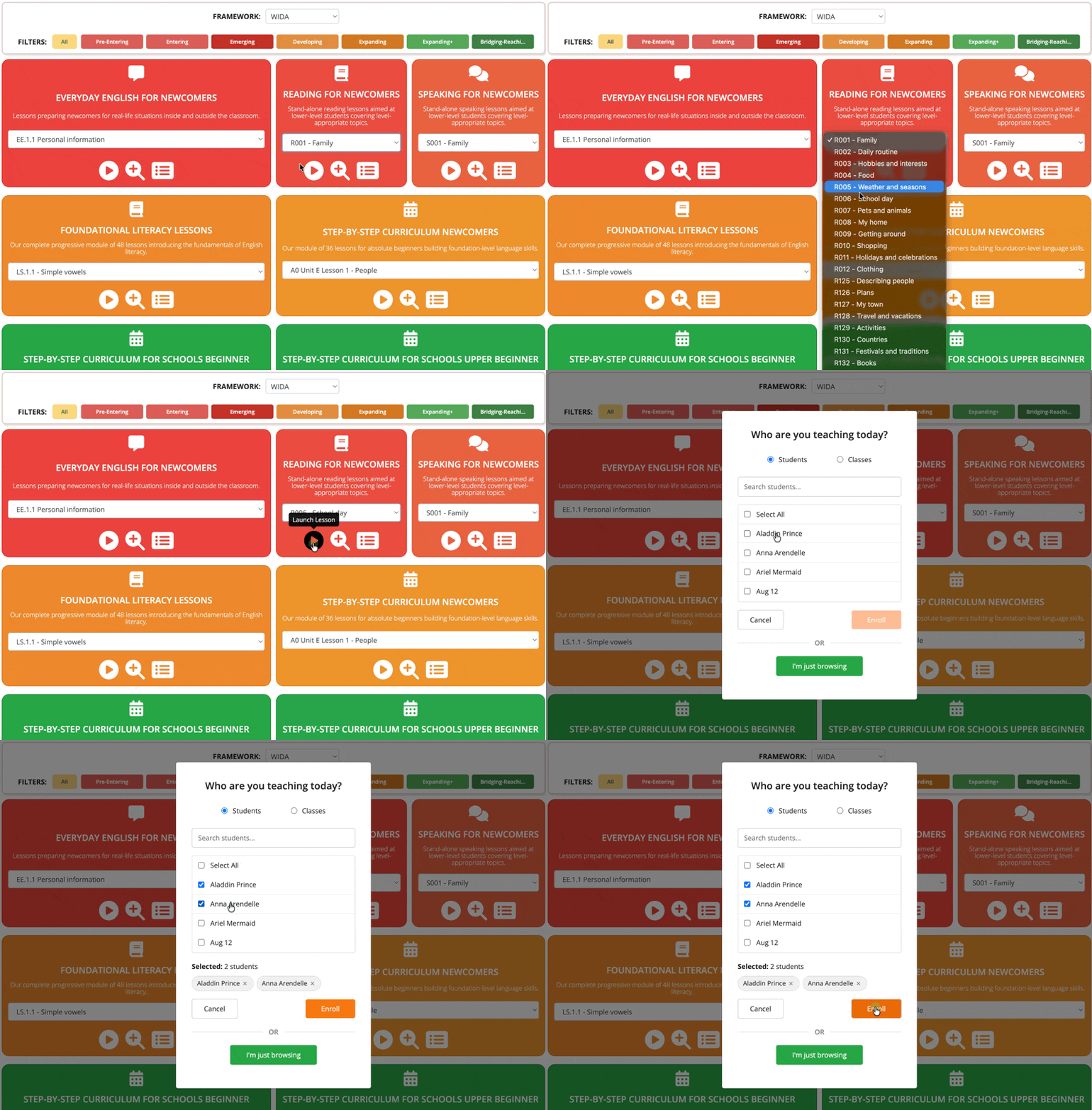
- Go to the Lesson Library.
- Find the lesson group you want to teach.
- Select the dropdown menu for that lesson group to expand the lesson list.
- Select the lesson you want to launch.
- Select the play button.
- Select Students to enroll individuals, or Classes to enroll a whole class.
- Search for or select the students or classes you want.
- Select Enroll.
Result: the Classroom opens and your students' names appear in the Lesson Roster. The status icon beside a name turns green once that student joins.
Your students can follow this two-minute video on joining a live class. To see what else the Classroom can do, read the Classroom overview.
Enroll students or a class from the Classroom
Use this when the lesson is already running and you need to add someone.
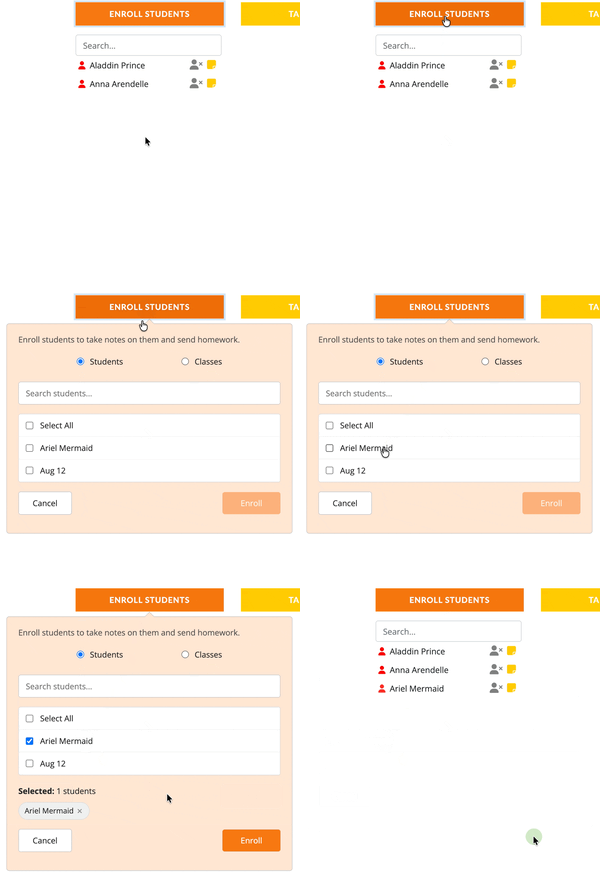
- In the Actions Bar, select Enroll Students.
- Select Students to enroll individuals, or Classes to enroll a whole class.
- Search for or select the students or classes you want.
- Select Enroll.
Result: the students you added appear in the Lesson Roster. The status icon beside a name turns green once that student joins.
This also works if you opened the lesson with I'm just browsing. You don't need to relaunch it.
End the lesson
You close the Classroom the same way whether you were browsing or teaching.
Important: always finish with Close classroom in the Actions Bar. Closing the browser tab or using the back button leaves the classroom open and skips the homework prompt. You can't go back into a classroom you left this way. Close it with Close classroom when Off2Class asks, then launch the lesson again and enroll your students.
- In the Actions Bar, select Close classroom.
Result: the Classroom closes, and Off2Class records the lesson in your classroom activity and your students' lesson history. If you enrolled students, Off2Class offers you the homework for that lesson.
Things to know
Important: Most accounts can only have one classroom open at a time. If a session was left open, Off2Class asks you to close it before you can start a new one. Contact Off2Class support to learn more about how to open multiple lessons at the same time.
Tip: enroll your students even when you teach from the projector and nobody is on a device. Enrolling is what gives them the slides to review afterward, and what makes the homework assignable when you close the Classroom.