
The features mentioned in this article are available to all Teachers on paid and free subscriptions. Not all lessons are available on free subscriptions.
Teaching in person gives you flexibility. You can either have students join the lesson on their own devices for a fully interactive experience, or teach using a single screen while guiding participation yourself.
Table of contents:
- Teaching with student devices (multi-device setup)
- Teaching with a single device (shared screen setup)
- Next steps
Teaching with student devices
This setup allows each student to participate directly from their own computer, tablet, or phone.
- Students log in on their devices using the credentials you set up for them.
- Locate and launch a lesson from the Lesson Library.
- Enroll the student or class.
- The student clicks the orange 'join lesson' button on the top left of their screen.
- A message in the classroom chat (bottom left) will confirm as each student joins the live lesson. View a list of enrolled students in the bottom left.
- Teach and interact. As you move through the slides, your students’ screens automatically sync with yours.
Teacher Notes are visible only to you and include extra questions, explanations, and answers to support your teaching.
For a detailed explanation of all the classroom features please see this article.
Teaching with a single device
This setup is ideal if you are teaching in a classroom, using a projector, TV, or Smartboard, or if students are gathered around one screen.
- Locate and launch a lesson from the Lesson Library.
- Enroll the student or class - Optional, but recommended. This allows students to be assigned homework and gives access to the lesson slides for asynchronous work. View a list of enrolled students in the bottom left.
- Share your screen.
- Select the full-screen icon (four corners) at the top right to hide Teacher Notes and view them on a different tab or mobile device.
- Teach and interact.
For a detailed explanation of all the classroom features please see this article.
Next steps
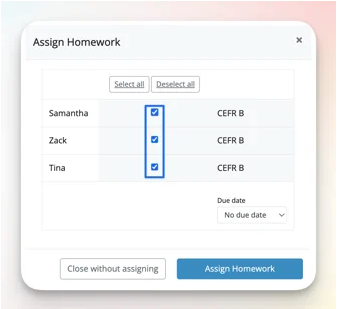
- Click the purple 'close classroom' button to end the lesson. Merely closing the tab or using the back arrow does not end the lesson or bring up the homework prompt.
- Assign homework: It's recommended to assign the homework if you've taught the whole lesson, as this will show the students' understanding of the material. Assign homework by checking the boxes, choosing to add a due date if needed, and clicking the 'assign homework' button.
Related Articles:
- How can I browse a lesson on my own? (without enrolling a student)
- Hide Teacher Notes and view them on your phone
- How can I learn more about the interactive tools (canvas, draw, and write) in the classroom?
- How can I assign homework to my students?
- How to teach a beginner student.
- How to teach an intermediate student.