The features mentioned in this article are available to all Teachers on paid and free subscriptions, except free-text and speaking homework auto-scoring, which are only available on paid subscriptions.
Table of contents
- Accessing homework submissions
- Reviewing and scoring homework
- Speaking auto-scoring rubric by proficiency level
- Student view
- Tips and best practices
Accessing homework submissions
- Teacher Panel: Best overall option. Lists all homework ready for review in a single view
- Class Management: Best for reviewing homework from a specific class
- Student Profile: Best for reviewing homework from an individual student
Teacher Panel
- Hover over the teacher menu in the top left
- Select 'teacher panel'
- Click the date in the submitted column to open the homework
- Click here to follow the steps below to review the homework
Class Management
- Click 'student management' in the top left.
- If you also have the enterprise manager role, hover over management, then click 'students'
- Locate the class and click 'enter class management'
- Locate the date/homework in the homework column (you might need to scroll horizontally)
- Click 'not reviewed' to open the homework
- Click here to follow the steps below to review the homework
Student Profile
- Click 'student management' in the top left.
- If you also have the enterprise manager role, hover over management, then click 'students'
- Click the student's name.
- Scroll down and locate the homework you want to review.
- Homework statuses:
- Submitted - the student has submitted and the homework is now ready for teacher review
- Started - the student has opened the. homework but not yet submitted
- Assigned - homework has been assigned but not started
- Not Assigned
-
For homework containing free-text or speaking questions, AI scoring may take up to five minutes to process after submission. During this time, the Score column displays "Scoring..." until the final score is available.
- Homework statuses:
- Click the blue eye icon in the far right actions column to open the homework.
- If a green clock icon appears next to the homework, the student has completed the same homework multiple times. Click the clock icon to view and manage all attempts.
- Click here to follow the steps below to review the homework
Reviewing and scoring homework
When you open a homework submission, a new window displays:
- The answer key on the left
- The student's answers on the right
The answer key becomes available once the student has started the homework.
There are three types of homework questions:
- Single-answer - only one possible answer
- Scoring: Automatically scored. Teachers can adjust the score.
- Feedback: Teachers can add or edit feedback.
-
- Scoring: Automatically scored for paid subscriptions. Teachers can adjust the score.
- Feedback: Automatic feedback for paid subscriptions. Teachers can adjust, regenerate, or remove the feedback.
3. Speaking - spoken responses with many possible answers
-
- Scoring: Automatically scored for paid subscriptions. Teachers can adjust the score.
- Feedback: Automatic feedback for paid subscriptions. Teachers can adjust, regenerate, or remove the feedback.
To review a single-answer question:
-
- Review the student's answers.
- Click the score box to adjust the score if needed.
- Drag the pen and notepad icon to a question or to General Feedback at the bottom.
- Click Close Classroom.
- Click Reviewed to share results with the student, or Not Reviewed to keep results hidden from student.
To review a free-text or speaking response:
-
- Review the student's response.
- Click on the box to the right of the answer to adjust the score.
- Hover over the AI feedback icon to view the suggested feedback.
- Click the feedback icon to edit the feedback.
- Click Save when finished.
- Select Regenerate AI Feedback to create a new suggestion if needed.
- Click Close Classroom.
- Click Reviewed to share results with the student, or Not Reviewed to save without sharing.
Speaking Auto-Scoring rubric by proficiency level
Spoken responses are assessed across three areas — clarity, grammatical and lexical range, and fluency — against the performance criteria for the question's level. The AI then gives an overall task completion score, factoring in the homework instructions, the specific question, and the student's level.
| Proficiency Level | Clarity | Grammatical and Lexical Range | Fluency |
|---|---|---|---|
| Absolute Beginner | Student communicates using isolated words, memorized expressions, or very short responses related to familiar topics. Meaning may be difficult to understand without repetition, gestures, or support from the listener. | Student demonstrates emerging use of basic vocabulary and simple language patterns, often without sentence structure. Errors are frequent and may significantly limit communication, though familiar words or phrases may still convey basic meaning. | Student speaks in very short chunks with frequent pauses, repetition, or hesitation. Speech may rely heavily on prompting or modeling and is often limited to single words or memorized phrases. |
| Beginner | Student communicates simple ideas about familiar topics using short sentences or predictable expressions. Meaning is generally understandable, although ideas may be loosely connected and lack detail or expansion. | Student begins producing subject-verb constructions with some reliability, using simple vocabulary and familiar grammatical structures to express basic information. Frequent errors with verb forms, sentence structure, and word choice are common, but the listener can usually understand the intended message. | Student speaks in short, simple sentences with noticeable pauses and repetition. Speech may sound slow or effortful at times, especially when the student searches for vocabulary or attempts longer responses. |
| Upper Beginner | Student communicates ideas more clearly by adding simple descriptions, reasons, or details. Responses are generally organized and understandable, although connections between ideas may still be basic or uneven. | Student begins using simple verb tenses consistently and forming basic questions. Student uses an expanding range of everyday vocabulary and attempts longer or more varied sentence structures. Errors with grammar and word usage are still noticeable, but they usually do not prevent communication. | Student can sustain a short response with some continuity and less reliance on pauses or repetition. Hesitation may still occur during longer responses or when expressing less familiar ideas, but communication generally continues successfully. |
| Pre-Intermediate | Student communicates complete ideas with relevant details and supporting information. Responses are generally clear and organized, though explanations may remain fairly direct or predictable. | Student uses a variety of simple and some more complex grammatical structures to explain, describe, and give reasons. Student may begin connecting clauses with basic conjunctions (because, but, so). Vocabulary is adequate for familiar and some less familiar topics, although language may still be repetitive or somewhat imprecise. Errors are evident but usually do not interfere with understanding. | Student speaks with growing confidence and can maintain connected speech for an extended response. Pauses and self-corrections still occur, particularly when organizing ideas or attempting more complex language, but overall communication remains smooth. |
| Intermediate | Student communicates ideas clearly and develops responses with explanation, comparison, or reasoning. Ideas are connected logically, and the student can adapt language to support different purposes or situations. | Student demonstrates increased control of grammatical structures and uses a broader range of vocabulary to elaborate and clarify meaning. Student may use subordinate clauses and a range of tenses with general accuracy. Language is generally accurate and flexible, though occasional awkward phrasing or grammatical inconsistencies may still appear. | Student speaks at a generally natural pace and can sustain longer responses with limited interruption. Hesitation is usually connected to planning more detailed or complex ideas rather than difficulty producing language. |
| Upper Intermediate | Student communicates clearly and effectively across a range of familiar and abstract topics. Responses are well organized and include explanation, contrast, and support for opinions, although some ideas may still lack nuance or precision. | Student uses a wide range of grammatical structures and vocabulary to express detailed ideas, speculate, and justify opinions. Student begins controlling complex structures (conditionals, reported speech, passive) with some consistency. Errors may still occur in more sophisticated language use, but they rarely interfere with clarity or overall effectiveness. | Student speaks smoothly and can sustain extended responses with relatively consistent pacing and organization. Occasional hesitation or reformulation may occur when discussing complex ideas, but it does not significantly disrupt communication. |
| Advanced | Student communicates complex and nuanced ideas clearly, effectively, and with strong organization. Responses demonstrate flexibility in explaining, analyzing, and supporting ideas for different purposes or audiences. | Student demonstrates strong control of a broad and flexible range of grammatical structures and vocabulary. Language use is precise and sophisticated, allowing the student to express subtle distinctions and complex reasoning, even though minor errors may occasionally occur. | Student speaks fluently and confidently with natural pacing and strong continuity of ideas. Speech flows smoothly even during complex explanations or abstract discussion, with only occasional hesitation for refinement or emphasis. |
Student view
After closing the classroom and marking the homework as reviewed, your student can access both the score and the feedback.
Your students will see their homework scores in their Completed Work tab when they next log in
Note: For single-option answers, the answer key is automatically shared with the student after they complete the homework. 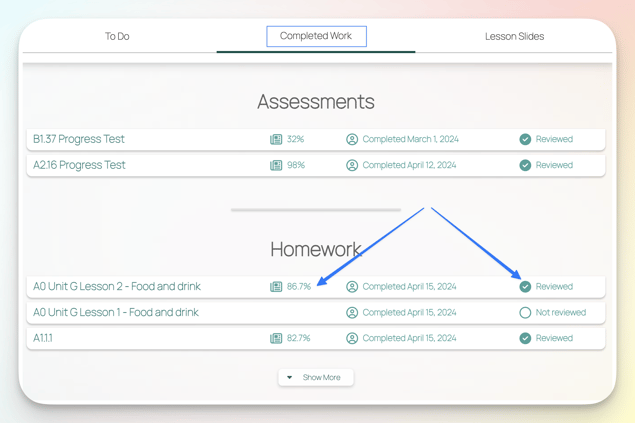
Tips and best practices
- Tips for leaving feedback
- Hiding the answer key
- How we display the order of matching questions
- Reassigning homework (Optional)
- Tracking multiple attempts
- Notifications
Tips for leaving feedback
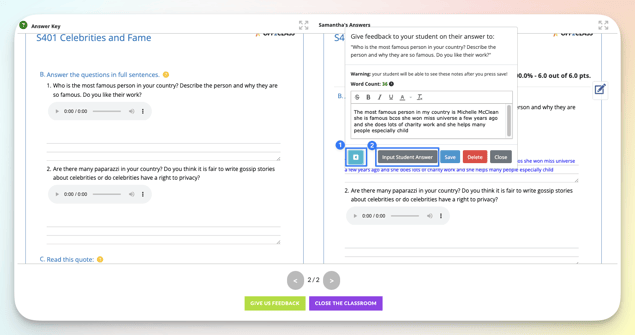
- Toggle: moves the editor box to the left or right of the screen.
- 'Input student Answer': easily make edits, using different colors, italics, or bold text.
Hiding the answer key
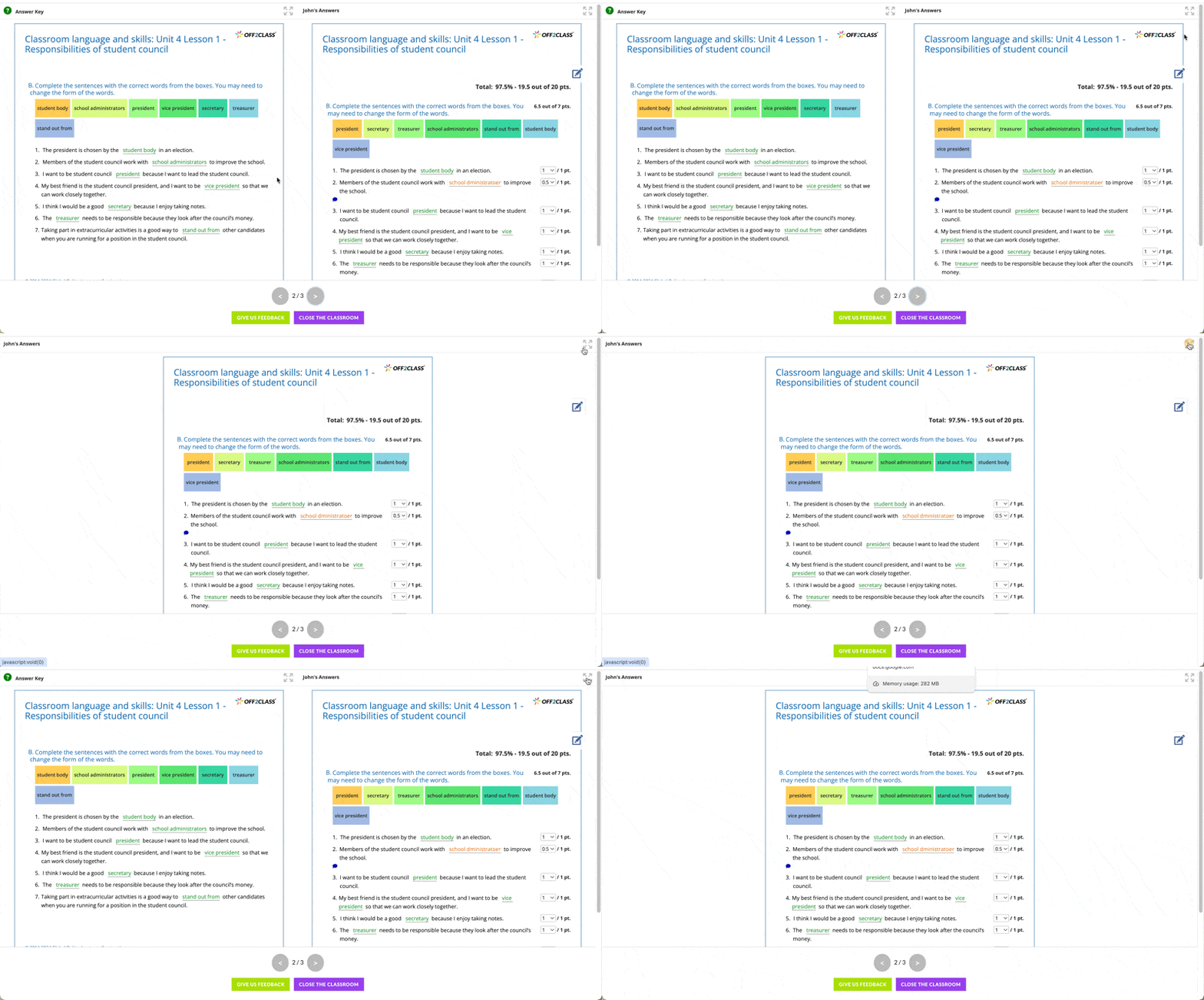
To hide the answer key, click the double arrow icon in the top right-hand corner of the screen.
This is helpful if you want to review homework together with your student via screen sharing. Toggle the double arrows to return to the previous view.
How we display the order of matching questions
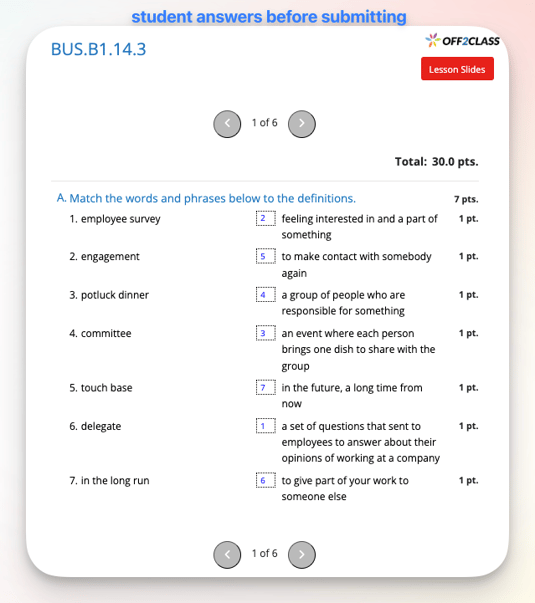

Matching questions are randomized for students. After submission, student answers are displayed in the same order as the answer key for ease of review. Incorrect answers are displayed in orange.
Reassigning Homework
You can reassign homework if a student needs additional practice on the same lesson.
- Launch the lesson again.
- Enroll the student/class.
- Click close classroom.
- Click assign homework.
If your students need additional practice beyond the assigned homework, you can supplement lessons with Student Handouts.
Student Handouts are printable worksheets designed to reinforce lesson content and provide opportunities for independent practice, review, and consolidation. They can be used:
- During class for guided practice
- As additional homework
- For differentiated instruction with students who need extra support or extension activities
You can print the handouts for in-person classes or share them digitally with online learners.
Tracking Multiple Homework Attempts
If a student completes the same homework more than once, you can review each attempt.
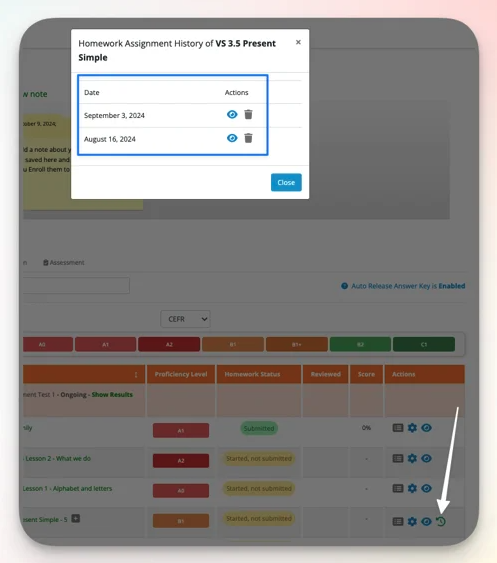
- Go to Student Management.
- Open the student's page.
- Look for the green clock icon next to the homework.
- Click the green clock icon to view all attempts.
- Click the blue eye icon to open and review a specific attempt.
Notifications
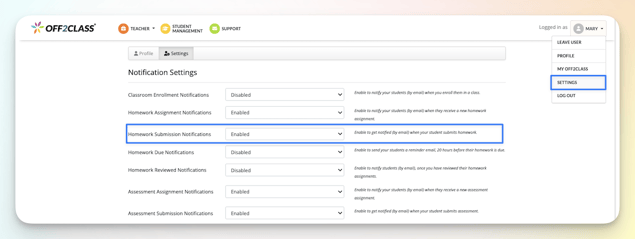
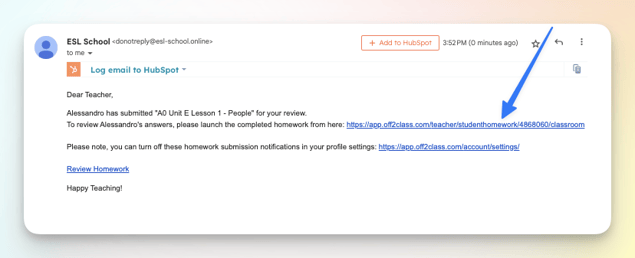
To enable 'Homework Submission Notifications' in settings, in the drop-down menu under your name in the top right corner, to receive email notifications when your students submit homework.
Example of the email that we send: