
Who this is for: teachers
Available to: teachers on all subscriptions
Before you start: nothing.
Contents
- Open My Off2Class
- Relaunch a past lesson
- Find your most used lessons
- Save a favorite lesson
- Remove a favorite lesson
My Off2Class keeps the lessons you teach in one place. It lists every lesson you've launched, ranks the ones you use most and holds a list of favorites you build yourself.
Open My Off2Class
- In the Teacher menu, select My Off2Class.
Result: My Off2Class opens on the My Past Sessions tab.
Relaunch a past lesson
The My Past Sessions tab lists every lesson you've launched, newest first. Each row shows the date, how long the lesson was open and the students enrolled.
- Select the My Past Sessions tab.
- Find the lesson. To go further back, use the page numbers under the list.
- In the Action column, select Launch Again.
Result: the lesson opens with the same students enrolled.
Note: if the Students column is empty, the lesson was opened without enrolling any students.
Find your most used lessons
The My Most Used Lessons tab ranks lessons by Total Launch Time. That's how long each lesson has been open across all your sessions.
- Select the My Most Used Lessons tab.
- In the Action column, select Launch Lesson.
Result: the lesson opens.
Save a favorite lesson
The My Favorite Lessons tab holds a list you build yourself, so the lessons you want are always one step away. You add favorites from this tab only. There's no favorite button in the Lesson Library.
- Select the My Favorite Lessons tab.
- Under Add a new lesson from the list, select the Select lesson menu.
- Select the lesson. Lessons are grouped by category.
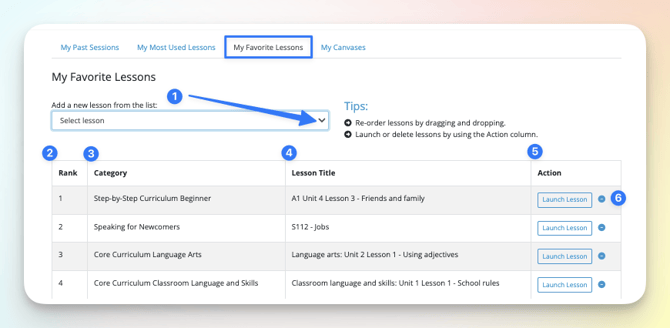
Result: the lesson appears at the top of your list, ranked 1.
Tip: to change the order, drag a lesson to a new place in the list. To teach a favorite, select Launch Lesson in the Action column.
Remove a favorite lesson
- Select the My Favorite Lessons tab.
- In the Action column, select the minus icon beside the lesson.
- Select OK.
Result: the lesson no longer appears in your favorites. It stays in the Lesson Library.