
The features mentioned in this article are available to all Teachers on paid and free subscriptions.
Related articles:
1. Check device settings
- First, ensure the student’s device audio settings are correct. Ask them to check that:
- The volume is turned up.
- No external speakers or headphones are muted.
2. Verify browser permissions
- Off2Class operates in a browser, so it’s essential to check that the browser allows microphone access:
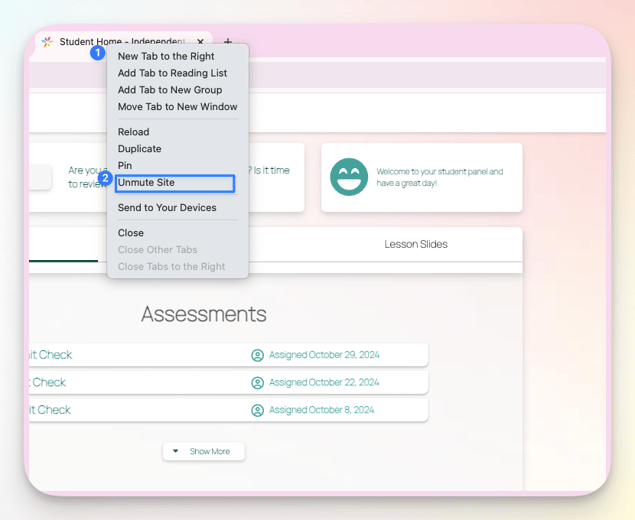
- In Chrome, (1) right-click the Off2Class tab and (2) click “Unmute Site”.
- If using a different browser, audio permissions may need to be enabled in Preferences > Websites.
3. Refresh the page
- After adjusting permissions, refresh the Off2Class page to apply changes. Sometimes a simple refresh fixes audio connection issues.
4. Use a different browser or device
- If issues persist, switching to a different browser (such as Edge, Firefox, Safari) or even a different device may solve the problem.
5. Contact support if needed
- If the audio still doesn’t work, Off2Class support is available for further troubleshooting.