The features mentioned in this article are available to all Teachers on paid and free subscriptions, however only grammar testing is available on free subscriptions.
Table of contents
- Accessing Placement Test results
- Reviewing the Standard Placement Test results
- Reviewing the Adaptive Placement Test results
- Tips, best practices and notifications
Understanding the test results: The test does not give a score. It assigns a proficiency level for student placement. A result like 19/30 is not a level cutoff. Levels are assigned using per-level thresholds, with the adaptive question mix varying from student to student. Two students can share the same score but be placed differently. A + indicates performance at the top end of a level, without enough consistent evidence to move fully into the next level.
Accessing Placement Test results
- Teacher Panel: Best overall option. Lists all placement tests ready for review in a single view
- Class Management: Best for reviewing placement test results from a specific class
- Student Profile: Best for reviewing placement test results from an individual student
Teacher Panel: Best overall option. Lists all placement tests ready for review in a single view
- Hover over the teacher menu in the top left
- Select 'teacher panel'
- Select 'placement test' tab
- Click on the date in the status column to open the test results
Class Management: Best for reviewing placement test results from a specific class
- Click 'student management' in the top left.
- If you also have the enterprise manager role, hover over management, then click 'students'
- Locate the class you want to view and click 'enter class management'
- Look at the columns and locate the placement test you want to review (you might need to scroll left)
- Click the 'not reviewed' button to open the test
Student Profile: Best for reviewing placement test results from an individual student
- Click 'student management' in the top left.
- If you also have the enterprise manager role, hover over management, then click 'students'
- Locate the student you want to view and click on them.
- Locate the Placement Test in the top row.
- Click 'Show Results' to open the test results.
- Tests marked as ‘Ongoing’ have not yet been submitted. Click ‘Show Results’ to view the student’s current progress.
Reviewing the Standard placement test results
The Placement Test results page gives a clear overview of your student’s English proficiency and areas for improvement.
Grammar proficiency and overview
- Grammar proficiency level - indicates Can-Do statements for that level
- Listening proficiency - indicates whether it supports the grammar level
- Reading proficiency - indicates whether it supports the grammar level
- Writing proficiency - to be scored by the teacher
- Speaking proficiency - to be scored by the teacher
Review your student's answers on the central chart
- Green - correct answers
- Orange - incorrect answers
- Yellow - "I don't know" responses
- Grey - questions skipped automatically when a level proved too difficult
Gap Analysis: Located below the chart. View the most valuable section for lesson planning.
- The level of each error
- The question, student's answer, and the correct answer
- The recommended Off2class lesson that addresses the gap
Review the Listening, Reading, Writing, and Speaking sections to gain insight into your student’s broader language ability.
- Listening: Play the prompt your student heard and review their responses. The summary will note whether their listening ability aligns with their grammar level.
- Reading: View the text your student received and see which questions they answered correctly or incorrectly. The summary will note whether their reading ability aligns with their grammar level.
- Writing: Read the student’s written response and evaluate whether it aligns with their other skills.
- Speaking: Listen to your student’s recorded response to evaluate whether it aligns with their other skills.
Reviewing the Adaptive placement test results
The Adaptive Placement Test provides a streamlined overview of your student’s grammar, reading, and listening proficiency.
Start by reviewing the Grammar proficiency level shown at the top of the page. This indicates your student’s current level based on their responses.
Use the central chart to review your student’s performance across the test and see which questions they answered correctly or incorrectly.
Review the Grammar, Listening, and Reading sections to see:
- The student's proficiency level in each skill area.
- Which questions they answered correctly or incorrectly.
- The recommended Off2class lesson that helps address gaps.
Note: Writing and Speaking are not currently included in the Adaptive Placement Test.
Tips, best practices and notifications
Sharing results with your students
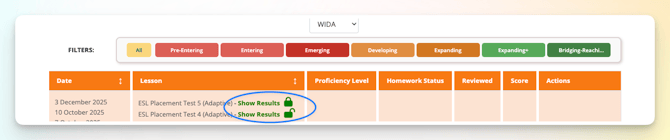
- Click Student Management in the top left
- If you also have the enterprise manager role, hover over management, then click 'students'
- Locate the student you want to view and click on them
- Locate the placement test in the first row
- Use the padlock icon to control access:
- to keep the test results hidden from the student, leave locked
- to share the results, click the padlock to unlock
Review the results together first, as they can be complex for students to interpret on their own.
Once unlocked, your student can view their results by clicking Placement Test under their Completed Work tab.
Additional actions
- From the left-hand column of the test results page:
- Click the printer icon to save the results, or print them as a pdf.
- Create a certificate showing the student's grammar level.
- Use the test results to
- group students of the same level together into classes.
- create a customized learning plan for your student (currently only available on the Standard Placement test).
- Understanding proficiency standards
- Change your default proficiency standard, to update student results and certificates. (CEFR, WIDA, TELPAS, CA ELD, or NY)
Notifications
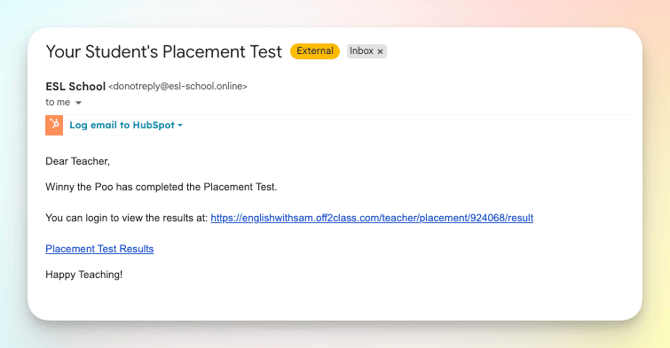
You receive email notifications when your students submit a placement test. Click the link to go straight to the test.
Example of the email you receive: