
What changed
We've rolled out a series of updates to how the draw and write Interactive Tools work in the classroom:
February 26: Draw and write tools are now teacher-only by default. When you turn them on, only you can use them until you explicitly grant access to students.
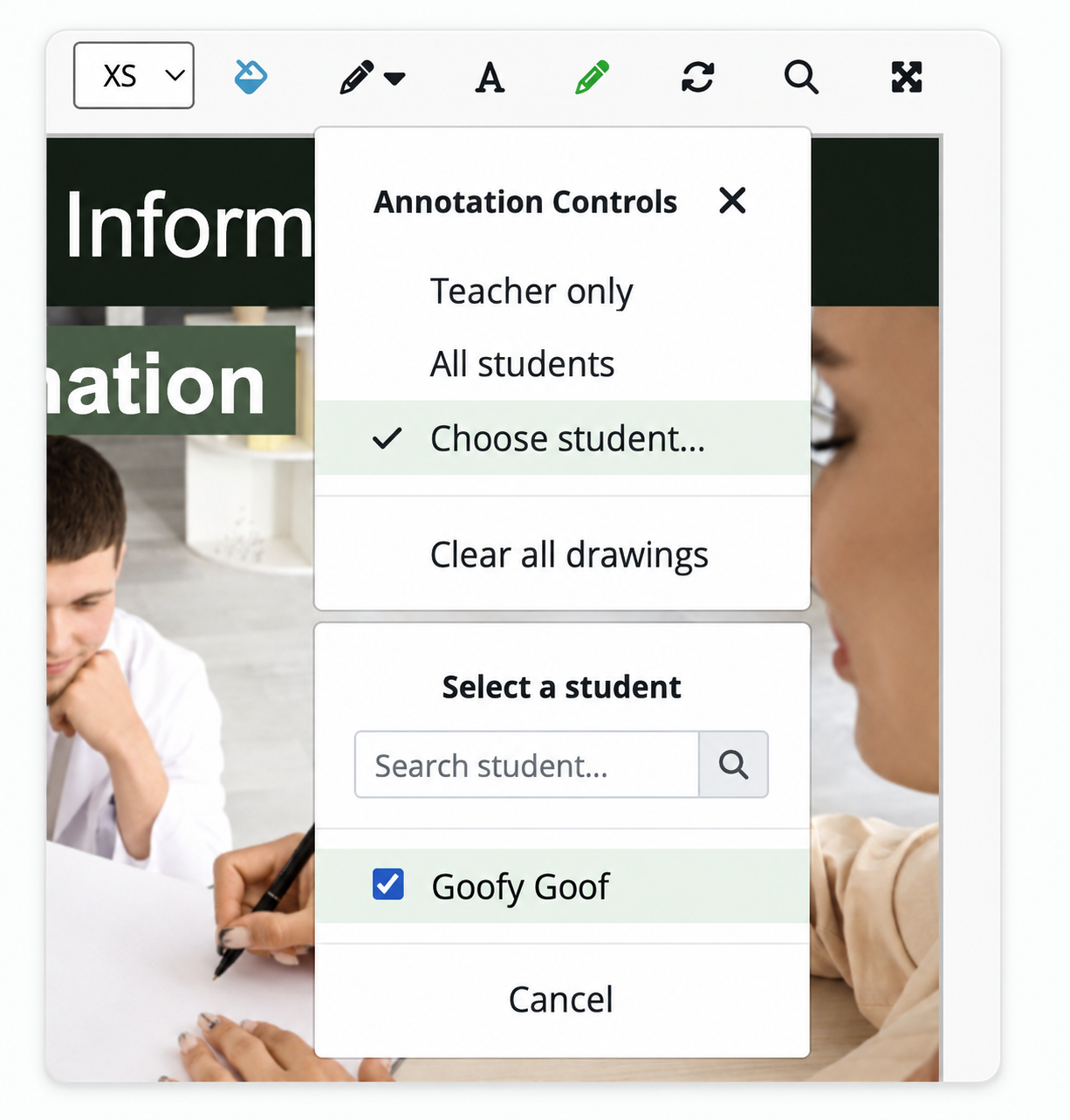
March 4: Teachers can now grant draw access to individual students rather than the whole class at once.
March 11: Teachers can now grant write access to individual students, the same way draw works.
Gap-fills are not affected by any of these changes. They remain editable by default for all students.
Why it matters
Before this update, turning on draw or write was a class-wide toggle. If you wanted one student to annotate a slide during a group session, every student in the room got access at the same time. That meant some students would start drawing or writing on slides when they weren't supposed to — and the only fix was turning the tool off for everyone.
Now it works the way classroom management actually works — you grant access to the student who needs it, when they need it. You can have one student annotating a slide while the rest of the class follows along, or open it up to everyone for a collaborative activity, then pull access back to teacher-only when you're done. With more than one student enrolled, only you have access by default until you choose to grant access to students.
How to use it
April 14, 2026 update: When one student is enrolled, enabling write or draw gives everyone access by default. With more than one enrolled student, only you have access by default. Use the Annotation Controls in the classroom toolbar to change access for individual students or the whole class. You can grant and revoke access at any time during the session. See Interactive Tools defaults.
Related article: Classroom
How to use it